> ## Documentation Index
> Fetch the complete documentation index at: https://docs.altnautica.com/llms.txt
> Use this file to discover all available pages before exploring further.
# Display
> A 480 by 320 touch panel on the ground station. Native dashboard, five-screen status carousel, mesh-pairing overlays. Auto-provisioning across Cubie A7Z, Rock 5C Lite, and Pi 4B.
# Display
The ground station ships with an optional SPI-attached touch LCD. The OLED is the always-on glance. The LCD is what you reach for when you need to do something. Color, fonts that read at arm's length, and gestures that mean what they mean on every other touchscreen.
 Looking for the OLED and four buttons? See [Physical UI](/ground-agent/physical-ui). The two surfaces coexist on the same node.
## Auto-provisioning
The installer takes care of the panel end to end. No `dtoverlay=` editing. No kernel rebuild.
The board fingerprint resolves a HAL profile. The profile lists one or more supported displays. The installer picks the first match, or honors a flag if the operator wants a different one.
The overlay source compiles to a device-tree binary. Modules load on every boot through a drop-in. Resolution, rotation, and touch state land in `/etc/ados/display.conf` for the renderer to read at startup.
First boot brings up the panel. The renderer probes the framebuffer, the touch bridge attaches to the input device, and the ground-station panel in Mission Control populates with live state.
See [Installation](/ground-agent/installation) for the install command and [Hardware Tab](/ground-agent/hardware-tab) for the Mission Control mirror.
## Native dashboard
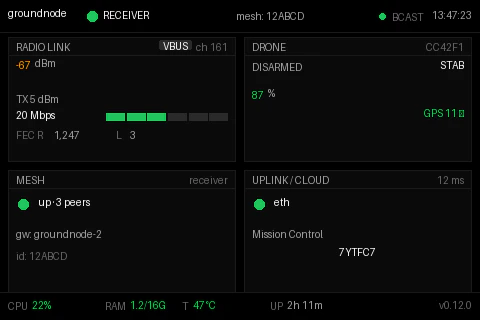
The dashboard is purpose-built for the LCD. Bigger fonts, four stat tiles, each one a tap target. The render engine and every page are drawn by the native Rust display binary (`ados-display`, the `ados-oled` unit), so there is no Python imaging stack in the render path.
The carousel is upscaled from the 128x64 OLED canvas for backwards compatibility. The dashboard runs natively at 480x320.
## Status carousel
The same five screens that cycle on the OLED are upscaled onto the LCD. Glance behavior stays identical across hardware. Tap to freeze on the active screen.
Looking for the OLED and four buttons? See [Physical UI](/ground-agent/physical-ui). The two surfaces coexist on the same node.
## Auto-provisioning
The installer takes care of the panel end to end. No `dtoverlay=` editing. No kernel rebuild.
The board fingerprint resolves a HAL profile. The profile lists one or more supported displays. The installer picks the first match, or honors a flag if the operator wants a different one.
The overlay source compiles to a device-tree binary. Modules load on every boot through a drop-in. Resolution, rotation, and touch state land in `/etc/ados/display.conf` for the renderer to read at startup.
First boot brings up the panel. The renderer probes the framebuffer, the touch bridge attaches to the input device, and the ground-station panel in Mission Control populates with live state.
See [Installation](/ground-agent/installation) for the install command and [Hardware Tab](/ground-agent/hardware-tab) for the Mission Control mirror.
## Native dashboard
The dashboard is purpose-built for the LCD. Bigger fonts, four stat tiles, each one a tap target. The render engine and every page are drawn by the native Rust display binary (`ados-display`, the `ados-oled` unit), so there is no Python imaging stack in the render path.
The carousel is upscaled from the 128x64 OLED canvas for backwards compatibility. The dashboard runs natively at 480x320.
## Status carousel
The same five screens that cycle on the OLED are upscaled onto the LCD. Glance behavior stays identical across hardware. Tap to freeze on the active screen.
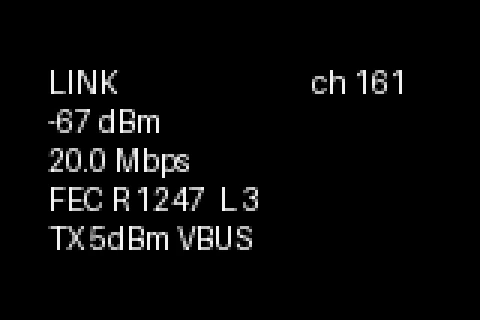 RSSI, bitrate, FEC repaired and lost, channel, TX power.
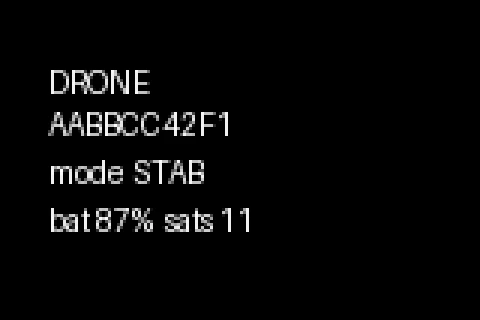 Paired device id, flight mode, battery, GPS sat count.
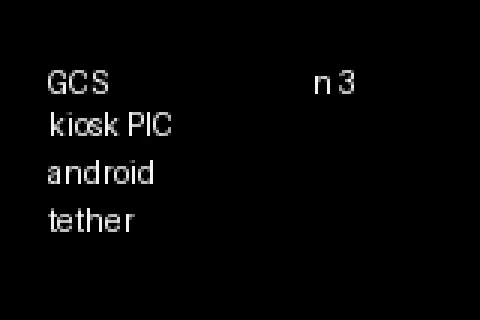 Connected client list with PIC badge.
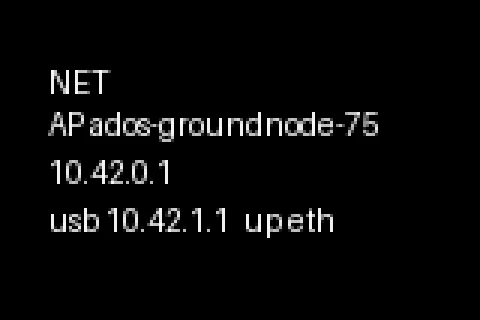 AP SSID and IP, USB tether IP, current uplink and reachability.
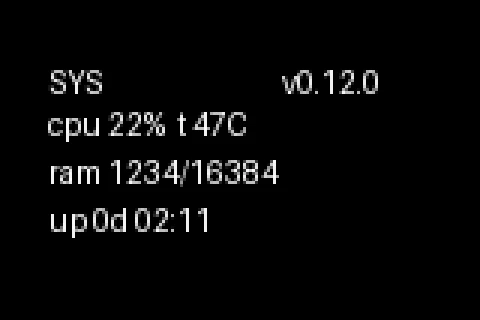 CPU, RAM, temperature, uptime, agent version.
## Field tap-to-pair flow
Two devices, no laptop, under two minutes. Each step has its own screen. No silent transitions. No modal-blocking dead ends.
CPU, RAM, temperature, uptime, agent version.
## Field tap-to-pair flow
Two devices, no laptop, under two minutes. Each step has its own screen. No silent transitions. No modal-blocking dead ends.
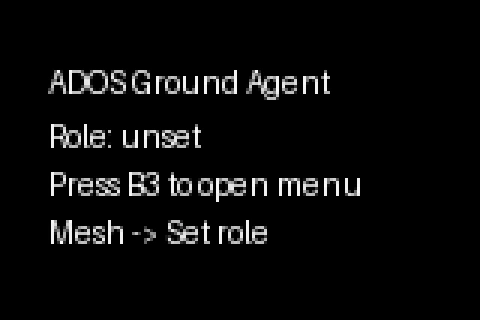 A mesh-capable node with no role picked yet shows a banner pointing at the menu instead of cycling status screens.
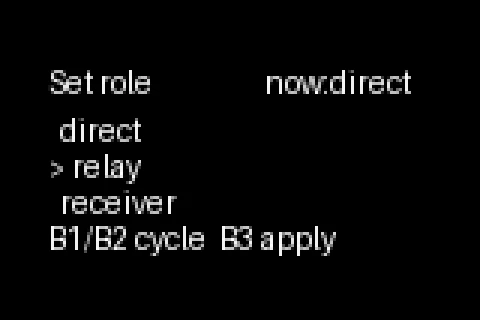 Cycle direct, relay, or receiver. Tap apply to commit.
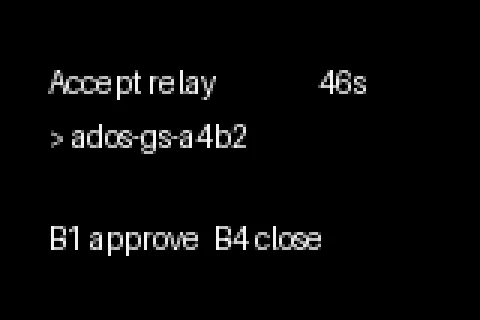 On the receiver, open a 60-second accept window. The countdown is on the panel.
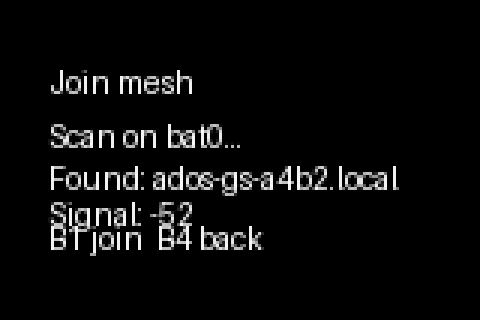 On the relay, scan for the receiver. mDNS discovery on `bat0` brings up host and signal.
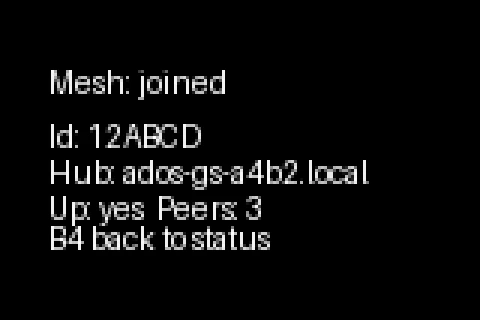 Mesh up. Confirmed on both ends.
The full ground-side reference for this flow lives at [Field pairing](/ground-agent/field-pairing).
## Overlay screens
Recovery, confirmation, list views. A node without a second WiFi adapter shows a hint screen so the operator knows the feature exists and how to unlock it.
Mesh up. Confirmed on both ends.
The full ground-side reference for this flow lives at [Field pairing](/ground-agent/field-pairing).
## Overlay screens
Recovery, confirmation, list views. A node without a second WiFi adapter shows a hint screen so the operator knows the feature exists and how to unlock it.
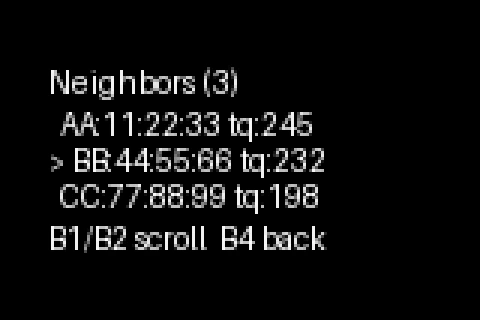 Mesh peers with link quality. Scrollable.
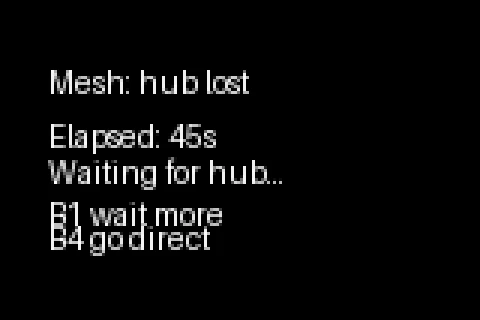 Receiver lost, grace period running. Wait or fall back to direct.
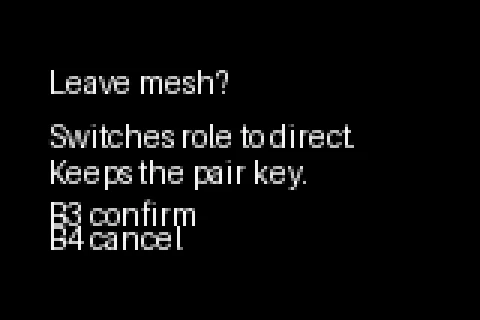 Two-tap confirmation before leaving the mesh.
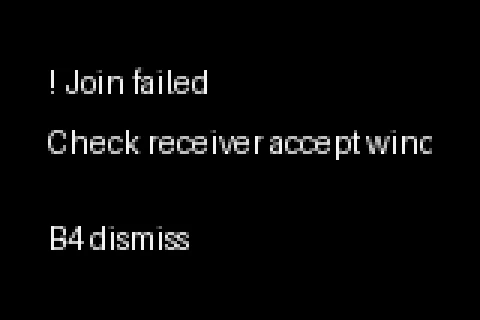 Single overlay that switches on the agent error code.
A `mesh-unavailable` hint screen replaces the silent empty submenu when the node has only one WiFi adapter, with a one-line nudge to plug a second adapter and reboot.
## Touch gestures
Gesture classification is shared across every screen. Same thresholds, same behavior. Hit zones are page-local so a tile tap maps to the right detail page regardless of theme.
| Gesture | Threshold | What it does |
| ---------- | ------------------- | --------------------------------------- |
| Tap | \< 400 ms, \< 12 px | Drill into a tile or select an item. |
| Long-press | >= 400 ms, \< 12 px | Open a context menu, start calibration. |
| Swipe | \< 250 ms, >= 24 px | Navigate between pages. |
| Drag | >= 250 ms, >= 12 px | Scroll a list or pan content. |
## Supported boards
New boards add a `displays` block to their HAL profile YAML and the installer picks them up. No code change in the renderer.
| Board | SoC | Panel | Driver | Touch | Resolution |
| ------------------ | -------------- | -------------------------- | ------- | ------- | ---------- |
| Radxa Cubie A7Z | Allwinner A733 | Waveshare 3.5" RPi LCD (A) | ILI9486 | ADS7846 | 480 x 320 |
| Radxa ROCK 5C Lite | RK3582 | Waveshare 3.5" RPi LCD (A) | ILI9486 | ADS7846 | 480 x 320 |
| Raspberry Pi 4B | BCM2711 | Waveshare 3.5" RPi LCD (A) | ILI9486 | ADS7846 | 480 x 320 |
Display profiles live in each board's HAL YAML. Adding a new pair is a YAML change plus an overlay file.
## Mission Control mirror
The ground-station panel in Mission Control mirrors the on-device display state. Type, controller, resolution, rotation, last-touch age, current page, calibration state. Calibrate from the desk before the operator walks out the door.
The local-display card appears the moment the panel binds. If the panel goes dark, the card flips to degraded state without taking down the rest of the panel.
The five-point calibration wizard runs from Mission Control as well as from a long-press on the panel itself. Calibration data persists across reboots.
See [Hardware Tab](/ground-agent/hardware-tab) for the full Mission Control surface.
## Graceful degradation
If the LCD is absent, the agent does not complain. The OLED still cycles, the setup webapp still serves status, and the ground-station panel in Mission Control still surfaces every config knob. Nothing in the agent's runtime requires the panel to exist.
## What's next
The OLED + four-button surface that ships on every node.
The one-line install handles the LCD overlay automatically.
First-time pairing and onboarding from the device webapp or the GCS.
The full mesh tap-to-pair walkthrough, with the same screens shown on the panel.
Single overlay that switches on the agent error code.
A `mesh-unavailable` hint screen replaces the silent empty submenu when the node has only one WiFi adapter, with a one-line nudge to plug a second adapter and reboot.
## Touch gestures
Gesture classification is shared across every screen. Same thresholds, same behavior. Hit zones are page-local so a tile tap maps to the right detail page regardless of theme.
| Gesture | Threshold | What it does |
| ---------- | ------------------- | --------------------------------------- |
| Tap | \< 400 ms, \< 12 px | Drill into a tile or select an item. |
| Long-press | >= 400 ms, \< 12 px | Open a context menu, start calibration. |
| Swipe | \< 250 ms, >= 24 px | Navigate between pages. |
| Drag | >= 250 ms, >= 12 px | Scroll a list or pan content. |
## Supported boards
New boards add a `displays` block to their HAL profile YAML and the installer picks them up. No code change in the renderer.
| Board | SoC | Panel | Driver | Touch | Resolution |
| ------------------ | -------------- | -------------------------- | ------- | ------- | ---------- |
| Radxa Cubie A7Z | Allwinner A733 | Waveshare 3.5" RPi LCD (A) | ILI9486 | ADS7846 | 480 x 320 |
| Radxa ROCK 5C Lite | RK3582 | Waveshare 3.5" RPi LCD (A) | ILI9486 | ADS7846 | 480 x 320 |
| Raspberry Pi 4B | BCM2711 | Waveshare 3.5" RPi LCD (A) | ILI9486 | ADS7846 | 480 x 320 |
Display profiles live in each board's HAL YAML. Adding a new pair is a YAML change plus an overlay file.
## Mission Control mirror
The ground-station panel in Mission Control mirrors the on-device display state. Type, controller, resolution, rotation, last-touch age, current page, calibration state. Calibrate from the desk before the operator walks out the door.
The local-display card appears the moment the panel binds. If the panel goes dark, the card flips to degraded state without taking down the rest of the panel.
The five-point calibration wizard runs from Mission Control as well as from a long-press on the panel itself. Calibration data persists across reboots.
See [Hardware Tab](/ground-agent/hardware-tab) for the full Mission Control surface.
## Graceful degradation
If the LCD is absent, the agent does not complain. The OLED still cycles, the setup webapp still serves status, and the ground-station panel in Mission Control still surfaces every config knob. Nothing in the agent's runtime requires the panel to exist.
## What's next
The OLED + four-button surface that ships on every node.
The one-line install handles the LCD overlay automatically.
First-time pairing and onboarding from the device webapp or the GCS.
The full mesh tap-to-pair walkthrough, with the same screens shown on the panel.