> ## Documentation Index
> Fetch the complete documentation index at: https://docs.altnautica.com/llms.txt
> Use this file to discover all available pages before exploring further.
# Flight Control
> Manual flight with gamepad, keyboard, and guided mode commands.
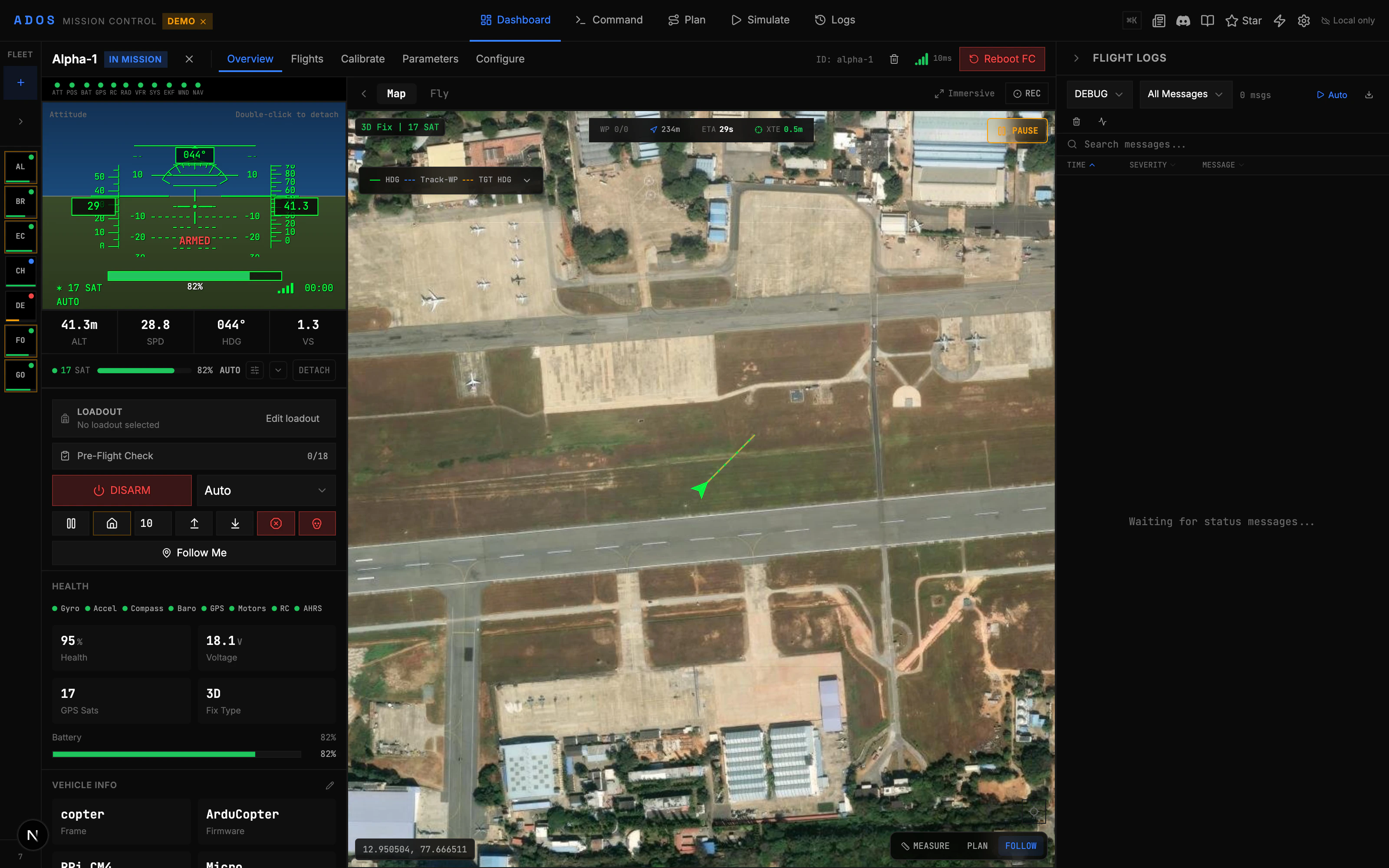
The per-drone Overview surface is your cockpit. Select a drone in the fleet sidebar to open its detail view; the Overview tab shows live telemetry, the video feed, and manual flight controls. This is where you fly your drone.
 ## Overview Layout
The Overview surface has several areas:
* **Video feed** (center): Live camera stream from the drone, with OSD overlay
* **Telemetry strip** (bottom or side): Attitude, speed, altitude, battery, GPS
* **Actions panel** (right): Arm/disarm, mode change, guided commands
* **Fleet sidebar** (left): Drone selection when multiple are connected
* **Mini-map** (corner): Overhead view of drone position
The per-drone detail view also carries an Extensions tab for extension surfaces installed on that drone (Follow-Me, Orbit, thermal overlay, gimbal control, and similar behaviors ship as extensions). See [Installing extensions](/mission-control/installing-plugins).
## Gamepad Control
Mission Control supports gamepad and HOTAS input at 50 Hz using the Web Gamepad API. When a gamepad is connected, the GCS sends `MANUAL_CONTROL` MAVLink messages directly to the flight controller.
**Supported input devices:**
* Xbox controllers (wired and wireless)
* PlayStation DualShock/DualSense
* Logitech gamepads
* HOTAS (Hands On Throttle And Stick) setups
* Any HID gamepad recognized by the Web Gamepad API
### How It Works
1. Connect a gamepad to your computer (USB or Bluetooth).
2. The browser detects it automatically via the Gamepad API.
3. Mission Control polls the gamepad at 50 Hz (every 20ms).
4. Stick positions are mapped to roll, pitch, throttle, and yaw.
5. `MANUAL_CONTROL` messages are sent to the flight controller at 50 Hz.
Gamepad control sends real stick inputs to the flight controller. Make sure you understand your FC's flight mode behavior before flying with a gamepad. Start in a stabilized mode.
### Input Mapping
The default mapping follows standard RC conventions:
| Gamepad Axis | Channel | Function |
| ------------- | -------- | ------------------ |
| Right stick X | Roll | Bank left/right |
| Right stick Y | Pitch | Pitch forward/back |
| Left stick Y | Throttle | Climb/descend |
| Left stick X | Yaw | Rotate left/right |
You can customize the input mapping in [Settings > Input](/mission-control/settings).
## Keyboard Control
For quick commands without a gamepad, keyboard shortcuts are available:
| Key | Action |
| ---------- | -------------------------------- |
| `Space` | Arm / Disarm (with confirmation) |
| `R` | Return to Launch |
| `L` | Land |
| `T` | Takeoff |
| `G` | Enter Guided mode |
| Arrow keys | Nudge position in guided mode |
| `+` / `-` | Adjust altitude in guided mode |
Keyboard controls work in guided mode for position nudging. For full 4-axis manual flight control, use a gamepad or HOTAS.
## Guided Mode
Guided mode lets you command the drone to fly to specific positions. In this mode, you can:
* **Click the map** to set a guided waypoint. The drone flies to that position.
* **Set altitude** before sending the goto command.
* **Use keyboard arrows** to nudge the drone's position incrementally.
A confirmation dialog appears before sending guided commands, showing the target position and distance from the drone's current location.
## Automated Flight Behaviors
Higher-level flight behaviors (Follow-Me, Orbit, QuickShots, obstacle avoidance, precision landing) ship as extensions through the ADOS Extensions registry rather than as a built-in catalog. Browse the [Extensions tab](/mission-control/installing-plugins) on the per-drone view to install behaviors that match your hardware and mission.
Extensions contribute their own UI tabs and controls scoped to the drone you install them on, so a behavior available on one drone in your fleet does not have to be active on the others.
## Actions Panel
The actions panel on the right side provides direct control buttons:
* **Arm / Disarm** with a safety confirmation dialog
* **Flight mode selector** showing all available modes for the connected firmware
* **Return to Launch (RTL)** button
* **Land** button
* **Takeoff** button with altitude input
* **Pre-flight checklist** to verify readiness before flight
* **Failsafe alert banner** showing active failsafe conditions
## Pre-Flight Checklist
Before arming, the pre-flight checklist helps you verify that your drone is ready:
* GPS lock status
* Battery level
* Pre-arm check results from the FC
* Sensor health
* RC input status
* Geofence configured (if applicable)
Items that fail show warnings with explanations. You can acknowledge warnings and proceed, or fix the issues first.
## OSD Overlay
When video is active, an on-screen display (OSD) overlay shows key telemetry data on top of the video feed:
* Altitude, speed, heading
* Battery voltage and percentage
* Flight mode
* GPS satellite count
* Home direction and distance
* Armed status
## Telemetry Strip
The telemetry strip at the bottom shows real-time flight data in a compact format. See the [Telemetry](/mission-control/telemetry) page for details on all available readouts.
## Mission Execution
When a mission is active, the Overview surface shows mission execution progress:
* Current waypoint indicator
* Distance to next waypoint
* Mission completion percentage
* Elapsed time
## Overview Layout
The Overview surface has several areas:
* **Video feed** (center): Live camera stream from the drone, with OSD overlay
* **Telemetry strip** (bottom or side): Attitude, speed, altitude, battery, GPS
* **Actions panel** (right): Arm/disarm, mode change, guided commands
* **Fleet sidebar** (left): Drone selection when multiple are connected
* **Mini-map** (corner): Overhead view of drone position
The per-drone detail view also carries an Extensions tab for extension surfaces installed on that drone (Follow-Me, Orbit, thermal overlay, gimbal control, and similar behaviors ship as extensions). See [Installing extensions](/mission-control/installing-plugins).
## Gamepad Control
Mission Control supports gamepad and HOTAS input at 50 Hz using the Web Gamepad API. When a gamepad is connected, the GCS sends `MANUAL_CONTROL` MAVLink messages directly to the flight controller.
**Supported input devices:**
* Xbox controllers (wired and wireless)
* PlayStation DualShock/DualSense
* Logitech gamepads
* HOTAS (Hands On Throttle And Stick) setups
* Any HID gamepad recognized by the Web Gamepad API
### How It Works
1. Connect a gamepad to your computer (USB or Bluetooth).
2. The browser detects it automatically via the Gamepad API.
3. Mission Control polls the gamepad at 50 Hz (every 20ms).
4. Stick positions are mapped to roll, pitch, throttle, and yaw.
5. `MANUAL_CONTROL` messages are sent to the flight controller at 50 Hz.
Gamepad control sends real stick inputs to the flight controller. Make sure you understand your FC's flight mode behavior before flying with a gamepad. Start in a stabilized mode.
### Input Mapping
The default mapping follows standard RC conventions:
| Gamepad Axis | Channel | Function |
| ------------- | -------- | ------------------ |
| Right stick X | Roll | Bank left/right |
| Right stick Y | Pitch | Pitch forward/back |
| Left stick Y | Throttle | Climb/descend |
| Left stick X | Yaw | Rotate left/right |
You can customize the input mapping in [Settings > Input](/mission-control/settings).
## Keyboard Control
For quick commands without a gamepad, keyboard shortcuts are available:
| Key | Action |
| ---------- | -------------------------------- |
| `Space` | Arm / Disarm (with confirmation) |
| `R` | Return to Launch |
| `L` | Land |
| `T` | Takeoff |
| `G` | Enter Guided mode |
| Arrow keys | Nudge position in guided mode |
| `+` / `-` | Adjust altitude in guided mode |
Keyboard controls work in guided mode for position nudging. For full 4-axis manual flight control, use a gamepad or HOTAS.
## Guided Mode
Guided mode lets you command the drone to fly to specific positions. In this mode, you can:
* **Click the map** to set a guided waypoint. The drone flies to that position.
* **Set altitude** before sending the goto command.
* **Use keyboard arrows** to nudge the drone's position incrementally.
A confirmation dialog appears before sending guided commands, showing the target position and distance from the drone's current location.
## Automated Flight Behaviors
Higher-level flight behaviors (Follow-Me, Orbit, QuickShots, obstacle avoidance, precision landing) ship as extensions through the ADOS Extensions registry rather than as a built-in catalog. Browse the [Extensions tab](/mission-control/installing-plugins) on the per-drone view to install behaviors that match your hardware and mission.
Extensions contribute their own UI tabs and controls scoped to the drone you install them on, so a behavior available on one drone in your fleet does not have to be active on the others.
## Actions Panel
The actions panel on the right side provides direct control buttons:
* **Arm / Disarm** with a safety confirmation dialog
* **Flight mode selector** showing all available modes for the connected firmware
* **Return to Launch (RTL)** button
* **Land** button
* **Takeoff** button with altitude input
* **Pre-flight checklist** to verify readiness before flight
* **Failsafe alert banner** showing active failsafe conditions
## Pre-Flight Checklist
Before arming, the pre-flight checklist helps you verify that your drone is ready:
* GPS lock status
* Battery level
* Pre-arm check results from the FC
* Sensor health
* RC input status
* Geofence configured (if applicable)
Items that fail show warnings with explanations. You can acknowledge warnings and proceed, or fix the issues first.
## OSD Overlay
When video is active, an on-screen display (OSD) overlay shows key telemetry data on top of the video feed:
* Altitude, speed, heading
* Battery voltage and percentage
* Flight mode
* GPS satellite count
* Home direction and distance
* Armed status
## Telemetry Strip
The telemetry strip at the bottom shows real-time flight data in a compact format. See the [Telemetry](/mission-control/telemetry) page for details on all available readouts.
## Mission Execution
When a mission is active, the Overview surface shows mission execution progress:
* Current waypoint indicator
* Distance to next waypoint
* Mission completion percentage
* Elapsed time