> ## Documentation Index
> Fetch the complete documentation index at: https://docs.altnautica.com/llms.txt
> Use this file to discover all available pages before exploring further.
# Flight logs
> Review, replay, report on and export recorded flights in Mission Control's Logs tab, and download logs from the flight controller.
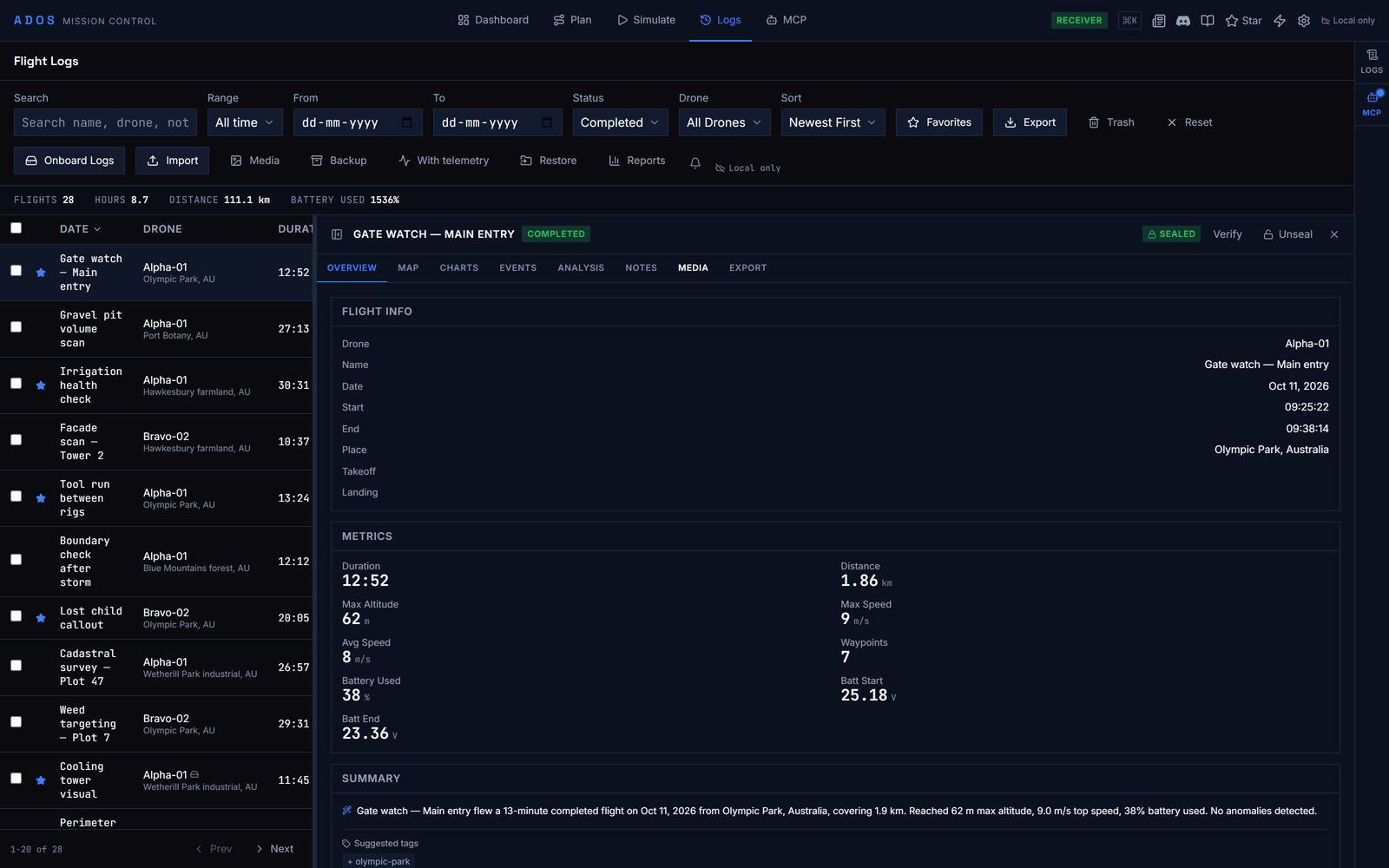
Mission Control records every flight it sees. When a connected drone arms, a flight record starts; when it disarms, the record closes with its duration, distance, altitude and telemetry. The **Logs** tab in the top navigation (route `/flight-logs`) lists those records along with any logs you import.
 ## Flight list
The toolbar filters and sorts the list:
| Control | Options |
| - | - |
| Search | Free text |
| Date | Presets (all, today, 7 days, 30 days, this month) or a **From** and **To** range |
| Status | In progress, completed, aborted, emergency |
| Drone | One drone or all |
| Sort | Newest first, oldest first, longest, farthest |
| **Favorites** | Show starred flights only |
Other toolbar actions: **Export**, **Onboard Logs** (download from the flight controller), import logs, import media, a full backup as a ZIP (optionally with telemetry) and restore from a backup, and **Reports**.
Select rows with the checkboxes (Shift-click selects a range) for the bulk bar: **Export**, **Logbook**, **Compare**, **Overlay**, **Fleet map**, **Favorite** and **Unfavorite**. Press `/` to focus the search box, `Del` to move selected flights to the trash after a confirmation (the trash view offers **Restore** and **Delete permanently**), `T` to toggle the trash view, and `Esc` to close the detail panel or clear the selection.
## Flight detail
Click a flight to open its detail panel. It has eight tabs:
| Tab | Contents |
| - | - |
| **Overview** | Summary, status and key figures |
| **Map** | The flown track |
| **Charts** | Telemetry over time |
| **Events** | Mode changes, arm and disarm, alerts |
| **Analysis** | Automated checks on the flight |
| **Notes** | Your notes |
| **Media** | Photos and video attached to the flight |
| **Export** | Downloads, including GPX and telemetry as CSV, KML or KMZ |
**Sign & lock** seals a record so it cannot be edited.
## Replay
When a flight has recorded position telemetry, **Replay** opens a full-screen replay with the map, a telemetry panel and a playback bar.
| Key | Action |
| - | - |
| `Space` | Play or pause |
| `←` / `→` | Seek 1 s (hold `Shift` for 10 s) |
| `Home` / `End` | Jump to the start or end |
| `J` / `L` | Slower / faster |
| `Esc` | Exit the replay |
To overlay a flown log on a mission plan instead, use **Compare a flown log** in the [3D mission preview](/mission-control/simulation).
## Import logs
Import logs recorded elsewhere. The format is detected from the file: ArduPilot dataflash (`.bin`), PX4 ULog (`.ulg`, `.ulog`), MAVLink telemetry logs (`.tlog`) and Mission Control JSON exports (`.json`). Each import is split into flight records.
## Download logs from the flight controller
**Onboard Logs** lists the logs stored on the connected flight controller. Select one or more and download them; Mission Control detects ArduPilot dataflash or PX4 ULog, splits them into flights and adds them to the list. This needs a real flight controller; demo drones show a notice and do not download.
Each drone's **Logs** tab in the node detail panel shows the same flights filtered to that drone (**Flights**) and, on nodes with the Drone Agent, the on-device Black Box store (**Recorder**). See [Black Box](/drone-agent/black-box).
## Reports
**Reports** (`/flight-logs/reports`) summarises flights over a date range: total flights, hours, distance and battery use, averages, and a breakdown by drone.
## Cloud sync
Flight records are stored in your browser. When you are signed in to a cloud-connected Mission Control, records also sync to the cloud: new and changed records upload about a second after the change, records from your other browsers download on load, and permanently deleted records stay deleted. A cloud badge in the toolbar and on each row shows the sync state. See [Cloud features](/mission-control/cloud-features).
## Next steps
Compare a flown log with the mission plan.
Formats for plans, boundaries and parameters.
This documentation is built and hosted on [Mintlify](https://mintlify.com), a developer documentation platform.
## Flight list
The toolbar filters and sorts the list:
| Control | Options |
| - | - |
| Search | Free text |
| Date | Presets (all, today, 7 days, 30 days, this month) or a **From** and **To** range |
| Status | In progress, completed, aborted, emergency |
| Drone | One drone or all |
| Sort | Newest first, oldest first, longest, farthest |
| **Favorites** | Show starred flights only |
Other toolbar actions: **Export**, **Onboard Logs** (download from the flight controller), import logs, import media, a full backup as a ZIP (optionally with telemetry) and restore from a backup, and **Reports**.
Select rows with the checkboxes (Shift-click selects a range) for the bulk bar: **Export**, **Logbook**, **Compare**, **Overlay**, **Fleet map**, **Favorite** and **Unfavorite**. Press `/` to focus the search box, `Del` to move selected flights to the trash after a confirmation (the trash view offers **Restore** and **Delete permanently**), `T` to toggle the trash view, and `Esc` to close the detail panel or clear the selection.
## Flight detail
Click a flight to open its detail panel. It has eight tabs:
| Tab | Contents |
| - | - |
| **Overview** | Summary, status and key figures |
| **Map** | The flown track |
| **Charts** | Telemetry over time |
| **Events** | Mode changes, arm and disarm, alerts |
| **Analysis** | Automated checks on the flight |
| **Notes** | Your notes |
| **Media** | Photos and video attached to the flight |
| **Export** | Downloads, including GPX and telemetry as CSV, KML or KMZ |
**Sign & lock** seals a record so it cannot be edited.
## Replay
When a flight has recorded position telemetry, **Replay** opens a full-screen replay with the map, a telemetry panel and a playback bar.
| Key | Action |
| - | - |
| `Space` | Play or pause |
| `←` / `→` | Seek 1 s (hold `Shift` for 10 s) |
| `Home` / `End` | Jump to the start or end |
| `J` / `L` | Slower / faster |
| `Esc` | Exit the replay |
To overlay a flown log on a mission plan instead, use **Compare a flown log** in the [3D mission preview](/mission-control/simulation).
## Import logs
Import logs recorded elsewhere. The format is detected from the file: ArduPilot dataflash (`.bin`), PX4 ULog (`.ulg`, `.ulog`), MAVLink telemetry logs (`.tlog`) and Mission Control JSON exports (`.json`). Each import is split into flight records.
## Download logs from the flight controller
**Onboard Logs** lists the logs stored on the connected flight controller. Select one or more and download them; Mission Control detects ArduPilot dataflash or PX4 ULog, splits them into flights and adds them to the list. This needs a real flight controller; demo drones show a notice and do not download.
Each drone's **Logs** tab in the node detail panel shows the same flights filtered to that drone (**Flights**) and, on nodes with the Drone Agent, the on-device Black Box store (**Recorder**). See [Black Box](/drone-agent/black-box).
## Reports
**Reports** (`/flight-logs/reports`) summarises flights over a date range: total flights, hours, distance and battery use, averages, and a breakdown by drone.
## Cloud sync
Flight records are stored in your browser. When you are signed in to a cloud-connected Mission Control, records also sync to the cloud: new and changed records upload about a second after the change, records from your other browsers download on load, and permanently deleted records stay deleted. A cloud badge in the toolbar and on each row shows the sync state. See [Cloud features](/mission-control/cloud-features).
## Next steps
Compare a flown log with the mission plan.
Formats for plans, boundaries and parameters.
This documentation is built and hosted on [Mintlify](https://mintlify.com), a developer documentation platform.