> ## Documentation Index
> Fetch the complete documentation index at: https://docs.altnautica.com/llms.txt
> Use this file to discover all available pages before exploring further.
# Parameters
> Browse, search, edit, and import/export flight controller parameters.
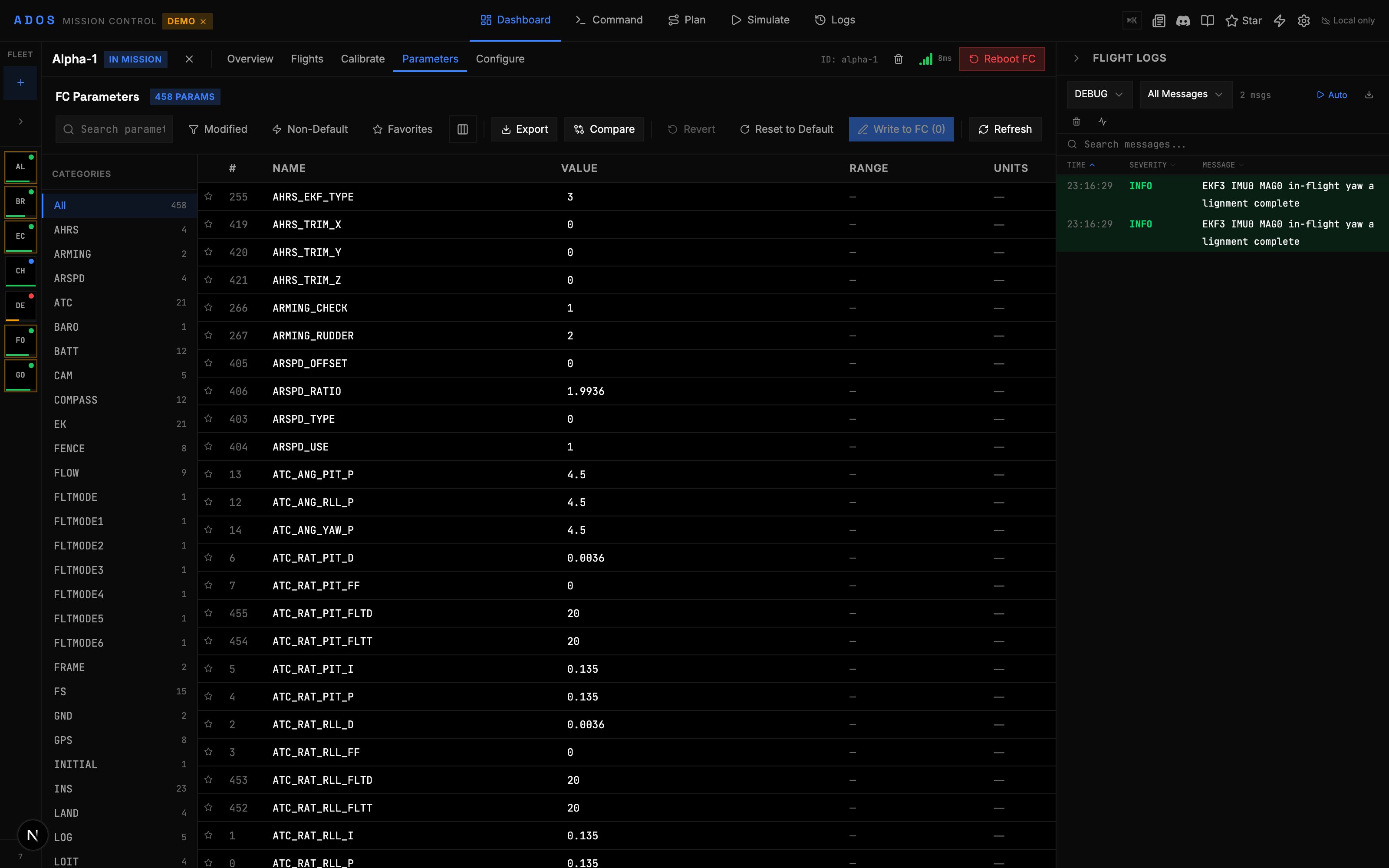
The Parameters panel gives you direct access to every parameter on your flight controller. ArduPilot drones typically have 800+ parameters. This panel lets you browse, search, filter, edit, and bulk-manage them.
 ## Reading Parameters
When you open the Parameters panel and click "Read from FC," Mission Control requests the full parameter list from the flight controller. The loading progress bar shows how many parameters have been received out of the total.
For ArduPilot, this typically takes 5-15 seconds depending on the connection speed and number of parameters (usually 800-1500).
## Browsing Parameters
Parameters are displayed in a table with configurable columns:
| Column | Description |
| ----------- | ------------------------------------------------------ |
| Index | Parameter index number |
| Name | Parameter name (e.g., `ARMING_CHECK`, `BATT_CAPACITY`) |
| Description | Human-readable description of what the parameter does |
| Value | Current value. Click to edit. |
| Range | Min/max valid range |
| Units | Parameter units (%, m, m/s, etc.) |
| Type | Data type (float, int, etc.) |
You can show or hide columns from the column visibility settings.
## Searching
The search box at the top filters parameters by name or description. Typing `BATT` shows all battery-related parameters. Typing `failsafe` shows parameters related to failsafe behavior.
Search is case-insensitive and matches partial strings.
## Filtering
Beyond search, several filter modes help you focus:
| Filter | Description |
| ----------------- | ------------------------------------------------------------------------- |
| **Modified only** | Show only parameters that have been changed from their default values |
| **Non-default** | Show parameters where the current value differs from the firmware default |
| **Favorites** | Show only parameters you have starred |
| **Category** | Filter by parameter group (e.g., ARMING, BATT, GPS, RC) |
### Filter Presets
Save frequently used filter combinations as presets. A preset stores:
* Search text
* Category selection
* Modified/non-default/favorites toggles
Load a preset to instantly apply that filter combination.
## Editing Parameters
Click on a parameter's value to edit it:
1. A text input or dropdown appears (dropdowns for enum-type parameters).
2. Enter the new value.
3. The parameter is highlighted as "dirty" (unsaved).
4. Click "Save" to write the value to the FC.
Some parameter changes require a flight controller reboot to take effect. A banner appears at the top of the panel when a reboot is needed. Reboot from the actions menu or by power-cycling the FC.
### Value Validation
The panel validates values before writing:
* Values outside the min/max range are rejected with an error message
* Enum parameters only accept valid options
* Type mismatches are caught (e.g., entering text in a numeric field)
## Import and Export
### Exporting Parameters
Click "Export" to download a `.param` file containing all current parameters. The file format is plain text:
```
ARMING_CHECK,1
BATT_CAPACITY,5200
BATT_MONITOR,4
GPS_TYPE,1
...
```
Use this to back up your configuration before making changes, or to share settings with others.
### Importing Parameters
Click "Import" to load a `.param` file. Mission Control:
1. Reads the file and parses name-value pairs
2. Compares imported values against current FC values
3. Shows a diff table highlighting what will change
4. Lets you select which parameters to apply
5. Writes the selected parameters to the FC
Import is useful for cloning configurations between identical drones. Export from one, import to another, and only the parameters that differ are written.
### Backup and Restore
The firmware panel includes backup and restore features that work with parameter files:
* **Backup:** Save the current parameter state
* **Restore:** Load a backup and write all differing parameters to the FC
## Parameter Descriptions
Mission Control includes built-in parameter metadata for ArduPilot and PX4. When you hover over or select a parameter, you see:
* **Full description** of what the parameter controls
* **Valid range** (min and max)
* **Default value** for the firmware version
* **Units** if applicable
* **Options** for enum-type parameters (e.g., `BATT_MONITOR`: 0=Disabled, 3=Analog Voltage Only, 4=Analog Voltage and Current)
## Keyboard Shortcuts
| Shortcut | Action |
| ------------------ | -------------------------------- |
| `Ctrl+F` / `Cmd+F` | Focus search box |
| `Enter` | Confirm edit |
| `Escape` | Cancel edit |
| `Tab` | Move to next parameter value |
| `Shift+Tab` | Move to previous parameter value |
## Working with Many Parameters
For drones with 1000+ parameters:
* Use search to narrow down. Most tasks only need 5-10 parameters.
* Use category filters to browse by subsystem.
* The "Modified only" filter shows what you have changed in this session.
* "Non-default" highlights everything that differs from the firmware defaults, which is useful for auditing a configuration.
## Reading Parameters
When you open the Parameters panel and click "Read from FC," Mission Control requests the full parameter list from the flight controller. The loading progress bar shows how many parameters have been received out of the total.
For ArduPilot, this typically takes 5-15 seconds depending on the connection speed and number of parameters (usually 800-1500).
## Browsing Parameters
Parameters are displayed in a table with configurable columns:
| Column | Description |
| ----------- | ------------------------------------------------------ |
| Index | Parameter index number |
| Name | Parameter name (e.g., `ARMING_CHECK`, `BATT_CAPACITY`) |
| Description | Human-readable description of what the parameter does |
| Value | Current value. Click to edit. |
| Range | Min/max valid range |
| Units | Parameter units (%, m, m/s, etc.) |
| Type | Data type (float, int, etc.) |
You can show or hide columns from the column visibility settings.
## Searching
The search box at the top filters parameters by name or description. Typing `BATT` shows all battery-related parameters. Typing `failsafe` shows parameters related to failsafe behavior.
Search is case-insensitive and matches partial strings.
## Filtering
Beyond search, several filter modes help you focus:
| Filter | Description |
| ----------------- | ------------------------------------------------------------------------- |
| **Modified only** | Show only parameters that have been changed from their default values |
| **Non-default** | Show parameters where the current value differs from the firmware default |
| **Favorites** | Show only parameters you have starred |
| **Category** | Filter by parameter group (e.g., ARMING, BATT, GPS, RC) |
### Filter Presets
Save frequently used filter combinations as presets. A preset stores:
* Search text
* Category selection
* Modified/non-default/favorites toggles
Load a preset to instantly apply that filter combination.
## Editing Parameters
Click on a parameter's value to edit it:
1. A text input or dropdown appears (dropdowns for enum-type parameters).
2. Enter the new value.
3. The parameter is highlighted as "dirty" (unsaved).
4. Click "Save" to write the value to the FC.
Some parameter changes require a flight controller reboot to take effect. A banner appears at the top of the panel when a reboot is needed. Reboot from the actions menu or by power-cycling the FC.
### Value Validation
The panel validates values before writing:
* Values outside the min/max range are rejected with an error message
* Enum parameters only accept valid options
* Type mismatches are caught (e.g., entering text in a numeric field)
## Import and Export
### Exporting Parameters
Click "Export" to download a `.param` file containing all current parameters. The file format is plain text:
```
ARMING_CHECK,1
BATT_CAPACITY,5200
BATT_MONITOR,4
GPS_TYPE,1
...
```
Use this to back up your configuration before making changes, or to share settings with others.
### Importing Parameters
Click "Import" to load a `.param` file. Mission Control:
1. Reads the file and parses name-value pairs
2. Compares imported values against current FC values
3. Shows a diff table highlighting what will change
4. Lets you select which parameters to apply
5. Writes the selected parameters to the FC
Import is useful for cloning configurations between identical drones. Export from one, import to another, and only the parameters that differ are written.
### Backup and Restore
The firmware panel includes backup and restore features that work with parameter files:
* **Backup:** Save the current parameter state
* **Restore:** Load a backup and write all differing parameters to the FC
## Parameter Descriptions
Mission Control includes built-in parameter metadata for ArduPilot and PX4. When you hover over or select a parameter, you see:
* **Full description** of what the parameter controls
* **Valid range** (min and max)
* **Default value** for the firmware version
* **Units** if applicable
* **Options** for enum-type parameters (e.g., `BATT_MONITOR`: 0=Disabled, 3=Analog Voltage Only, 4=Analog Voltage and Current)
## Keyboard Shortcuts
| Shortcut | Action |
| ------------------ | -------------------------------- |
| `Ctrl+F` / `Cmd+F` | Focus search box |
| `Enter` | Confirm edit |
| `Escape` | Cancel edit |
| `Tab` | Move to next parameter value |
| `Shift+Tab` | Move to previous parameter value |
## Working with Many Parameters
For drones with 1000+ parameters:
* Use search to narrow down. Most tasks only need 5-10 parameters.
* Use category filters to browse by subsystem.
* The "Modified only" filter shows what you have changed in this session.
* "Non-default" highlights everything that differs from the firmware defaults, which is useful for auditing a configuration.