> ## Documentation Index
> Fetch the complete documentation index at: https://docs.altnautica.com/llms.txt
> Use this file to discover all available pages before exploring further.
# Video Feed
> WebRTC video streaming with a 4-mode transport switcher.
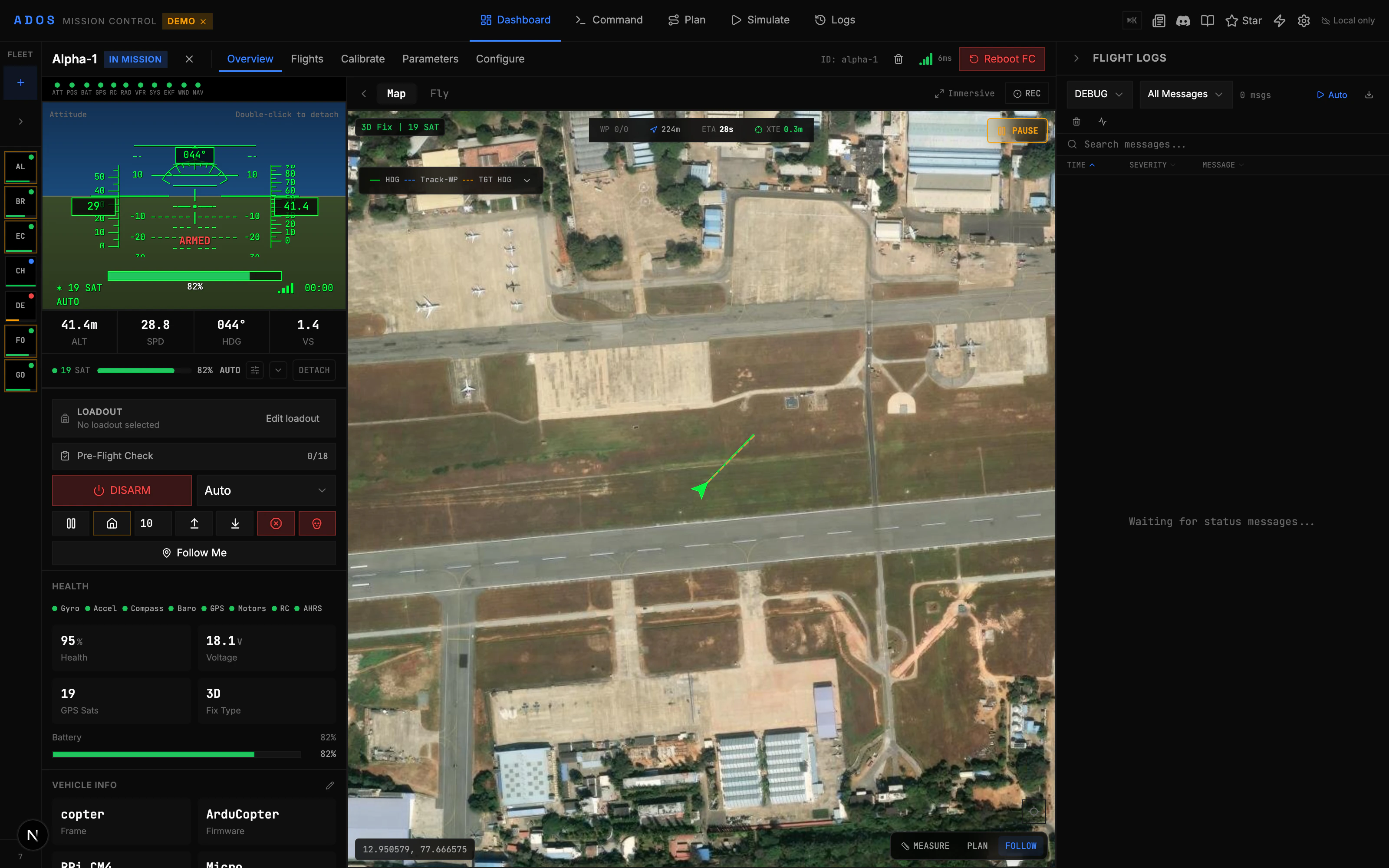
Mission Control displays live video from your drone's camera using WebRTC. A built-in transport switcher lets you choose between LAN, peer-to-peer, or automatic fallback.
 ## Video Architecture
The video pipeline has two main paths:
1. **LAN Direct (WHEP):** The drone agent runs mediamtx, which serves a WHEP endpoint. The browser connects directly over WebRTC on the local network. This gives the lowest latency (typically 100-200ms).
2. **P2P via MQTT Signaling:** When the drone is not on the same LAN, WebRTC session descriptions (SDP offers and answers) are relayed through an MQTT broker. The actual video still flows peer-to-peer once ICE negotiation completes.
Both paths use H.264 video (`avc1.640029` codec profile). The drone agent encodes the camera feed with ffmpeg using libx264.
## Transport Switcher
The video feed card includes an interactive transport switcher with four modes:
Default mode. Cascades through available transports in order: LAN Direct first, then P2P MQTT. Falls back automatically if one fails.
Pin to LAN-only WebRTC via WHEP. Use this when you are on the same network as the drone and want the lowest latency. No fallback.
Pin to peer-to-peer WebRTC with MQTT-based signaling. Use this when the drone is on a different network (e.g., cellular). Requires the agent to be paired.
Disable video entirely. Useful when you want to conserve bandwidth or the camera is not in use.
### Transport Health Indicators
Each mode shows a health status in the dropdown:
| Color | State | Meaning |
| ------ | ----------- | ----------------------------------------------------- |
| Green | OK | Transport is active and streaming |
| Blue | Testing | Connection attempt in progress |
| Yellow | Unknown | Not yet tested |
| Red | Failed | Connection attempt failed |
| Gray | Unavailable | Prerequisites not met (e.g., no paired agent for P2P) |
Hover over a failed mode to see a diagnostic tooltip with the failure stage and error code (e.g., `ice-gather-timeout`, `mqtt-connect-timeout`).
### Auto Mode Cascade
When Auto is selected, the cascade hook tries transports in sequence with timeouts:
1. **LAN Direct:** 4-second timeout. If the WHEP endpoint is reachable, connects.
2. **P2P MQTT:** 14-second timeout. Connects to the MQTT broker, sends an SDP offer, waits for the agent's answer.
3. **Failed:** If both fail, shows the transport dropdown with per-mode diagnostics.
Your transport preference persists across sessions in IndexedDB.
## Video Controls
The video feed card provides several controls:
* **Fullscreen:** Expand the video to fill the screen. The transport switcher stays visible inside fullscreen.
* **Recording:** Record the video stream locally in the browser (when supported).
* **Snapshot:** Capture a still frame from the video.
## OSD Overlay
When enabled, an on-screen display overlay renders on top of the video:
* Altitude, speed, heading
* Battery voltage and percentage
* Flight mode badge
* GPS fix and satellite count
* Home arrow showing direction and distance to home
* Armed state indicator
The OSD is rendered as an HTML overlay, not burned into the video stream. You can toggle it on or off.
## ICE Configuration
The drone agent's mediamtx is configured with multiple STUN servers for ICE candidate gathering:
* Google STUN (`stun.l.google.com:19302`)
* Google STUN2 (`stun2.l.google.com:19302`)
* Cloudflare STUN (`stun.cloudflare.com:3478`)
* Twilio STUN (`global.stun.twilio.com:3478`)
ICE candidates are gathered with an 8-second timeout. UDP and TCP ICE mux is pinned to port 8189 for predictable NAT traversal.
Users on symmetric-NAT cellular carriers (roughly 5-15% of mobile networks) may see P2P MQTT fail with an "ICE gather timeout" error. In that case, switch to a Wi-Fi network or wait for cloud relay modes to be added in a future release.
## Video on the HUD
The `/hud` route provides a minimal heads-up display optimized for full-screen use. It shows the video feed with essential telemetry overlaid. This view is designed for HDMI output from a ground station or a dedicated monitoring screen.
## Troubleshooting
Check that the drone agent's video pipeline is running. On the agent, run `ados status` and verify that the video service is active. Confirm a camera is connected and detected at `/dev/video*`.
This can happen when mediamtx encounters malformed H.264 frames. The agent includes a bitstream filter (`h264_mp4toannexb`) and watchdog to restart the pipeline on stall. If the issue persists, check the camera's USB connection.
In Auto mode, all transports are tested in sequence. If both fail, check your network. For LAN: is the drone agent reachable? For P2P MQTT: is the agent paired with a Convex backend? Is the MQTT broker accessible?
Typical LAN WebRTC latency is 100-200ms. If you see significantly more, check for Wi-Fi congestion, network buffering, or the camera's encoding settings. The agent uses low-latency ffmpeg flags by default.
## Video Architecture
The video pipeline has two main paths:
1. **LAN Direct (WHEP):** The drone agent runs mediamtx, which serves a WHEP endpoint. The browser connects directly over WebRTC on the local network. This gives the lowest latency (typically 100-200ms).
2. **P2P via MQTT Signaling:** When the drone is not on the same LAN, WebRTC session descriptions (SDP offers and answers) are relayed through an MQTT broker. The actual video still flows peer-to-peer once ICE negotiation completes.
Both paths use H.264 video (`avc1.640029` codec profile). The drone agent encodes the camera feed with ffmpeg using libx264.
## Transport Switcher
The video feed card includes an interactive transport switcher with four modes:
Default mode. Cascades through available transports in order: LAN Direct first, then P2P MQTT. Falls back automatically if one fails.
Pin to LAN-only WebRTC via WHEP. Use this when you are on the same network as the drone and want the lowest latency. No fallback.
Pin to peer-to-peer WebRTC with MQTT-based signaling. Use this when the drone is on a different network (e.g., cellular). Requires the agent to be paired.
Disable video entirely. Useful when you want to conserve bandwidth or the camera is not in use.
### Transport Health Indicators
Each mode shows a health status in the dropdown:
| Color | State | Meaning |
| ------ | ----------- | ----------------------------------------------------- |
| Green | OK | Transport is active and streaming |
| Blue | Testing | Connection attempt in progress |
| Yellow | Unknown | Not yet tested |
| Red | Failed | Connection attempt failed |
| Gray | Unavailable | Prerequisites not met (e.g., no paired agent for P2P) |
Hover over a failed mode to see a diagnostic tooltip with the failure stage and error code (e.g., `ice-gather-timeout`, `mqtt-connect-timeout`).
### Auto Mode Cascade
When Auto is selected, the cascade hook tries transports in sequence with timeouts:
1. **LAN Direct:** 4-second timeout. If the WHEP endpoint is reachable, connects.
2. **P2P MQTT:** 14-second timeout. Connects to the MQTT broker, sends an SDP offer, waits for the agent's answer.
3. **Failed:** If both fail, shows the transport dropdown with per-mode diagnostics.
Your transport preference persists across sessions in IndexedDB.
## Video Controls
The video feed card provides several controls:
* **Fullscreen:** Expand the video to fill the screen. The transport switcher stays visible inside fullscreen.
* **Recording:** Record the video stream locally in the browser (when supported).
* **Snapshot:** Capture a still frame from the video.
## OSD Overlay
When enabled, an on-screen display overlay renders on top of the video:
* Altitude, speed, heading
* Battery voltage and percentage
* Flight mode badge
* GPS fix and satellite count
* Home arrow showing direction and distance to home
* Armed state indicator
The OSD is rendered as an HTML overlay, not burned into the video stream. You can toggle it on or off.
## ICE Configuration
The drone agent's mediamtx is configured with multiple STUN servers for ICE candidate gathering:
* Google STUN (`stun.l.google.com:19302`)
* Google STUN2 (`stun2.l.google.com:19302`)
* Cloudflare STUN (`stun.cloudflare.com:3478`)
* Twilio STUN (`global.stun.twilio.com:3478`)
ICE candidates are gathered with an 8-second timeout. UDP and TCP ICE mux is pinned to port 8189 for predictable NAT traversal.
Users on symmetric-NAT cellular carriers (roughly 5-15% of mobile networks) may see P2P MQTT fail with an "ICE gather timeout" error. In that case, switch to a Wi-Fi network or wait for cloud relay modes to be added in a future release.
## Video on the HUD
The `/hud` route provides a minimal heads-up display optimized for full-screen use. It shows the video feed with essential telemetry overlaid. This view is designed for HDMI output from a ground station or a dedicated monitoring screen.
## Troubleshooting
Check that the drone agent's video pipeline is running. On the agent, run `ados status` and verify that the video service is active. Confirm a camera is connected and detected at `/dev/video*`.
This can happen when mediamtx encounters malformed H.264 frames. The agent includes a bitstream filter (`h264_mp4toannexb`) and watchdog to restart the pipeline on stall. If the issue persists, check the camera's USB connection.
In Auto mode, all transports are tested in sequence. If both fail, check your network. For LAN: is the drone agent reachable? For P2P MQTT: is the agent paired with a Convex backend? Is the MQTT broker accessible?
Typical LAN WebRTC latency is 100-200ms. If you see significantly more, check for Wi-Fi congestion, network buffering, or the camera's encoding settings. The agent uses low-latency ffmpeg flags by default.