What You Will Build
By the end of this page, you will have an ADOS Ground Agent running on a small SBC. It will receive WFB-ng video from your drone over a 5.8GHz radio link and relay that video to your laptop, phone, or HDMI monitor. You will be able to open Mission Control in your browser and see live video with under 100ms latency.What is the Ground Agent?
The Ground Agent is the same ADOS Drone Agent software running in ground-station profile mode. At boot, the agent detects ground-station hardware (OLED display, GPIO buttons, RTL8812EU WiFi adapter, and the absence of a flight controller) and automatically configures itself as a receiver instead of a transmitter. Its core job: receive video from the air, relay it to your screen.Hardware You Need
Minimum Setup (bench testing)
| Component | Example | Approx. Cost |
|---|---|---|
| SBC | Raspberry Pi 4B (2GB+ RAM) | $45 |
| WiFi adapter | RTL8812EU USB dongle | $15-20 |
| Antennas | 2x 5.8GHz SMA (dipole or patch) | $10-15 |
| USB-C cable | For power or laptop tether | $5 |
| Power supply | 5V 3A USB-C | $10 |
Full Standalone Setup (field use)
Add these for standalone operation without a laptop:| Component | Purpose | Approx. Cost |
|---|---|---|
| OLED display | 1.3” SSD1306 I2C | $5 |
| 4x tactile buttons | Physical controls | $2 |
| HDMI cable + portable monitor | Standalone video display | $50-100 |
| USB gamepad | Manual flight control in kiosk mode | $20-30 |
On the Drone Side
Your drone needs the matching transmitter:- ADOS Drone Agent running on a companion SBC
- An RTL8812EU USB WiFi adapter configured as WFB-ng TX
- A camera feeding the video pipeline
The RTL8812EU chipset is the key component. It supports 5.8GHz monitor mode, which WFB-ng needs for its broadcast protocol. Other chipsets (RTL8812AU, RTL8811CU) may work but are less tested. The BL-M8812EU2 module is a common, affordable choice.
Installation
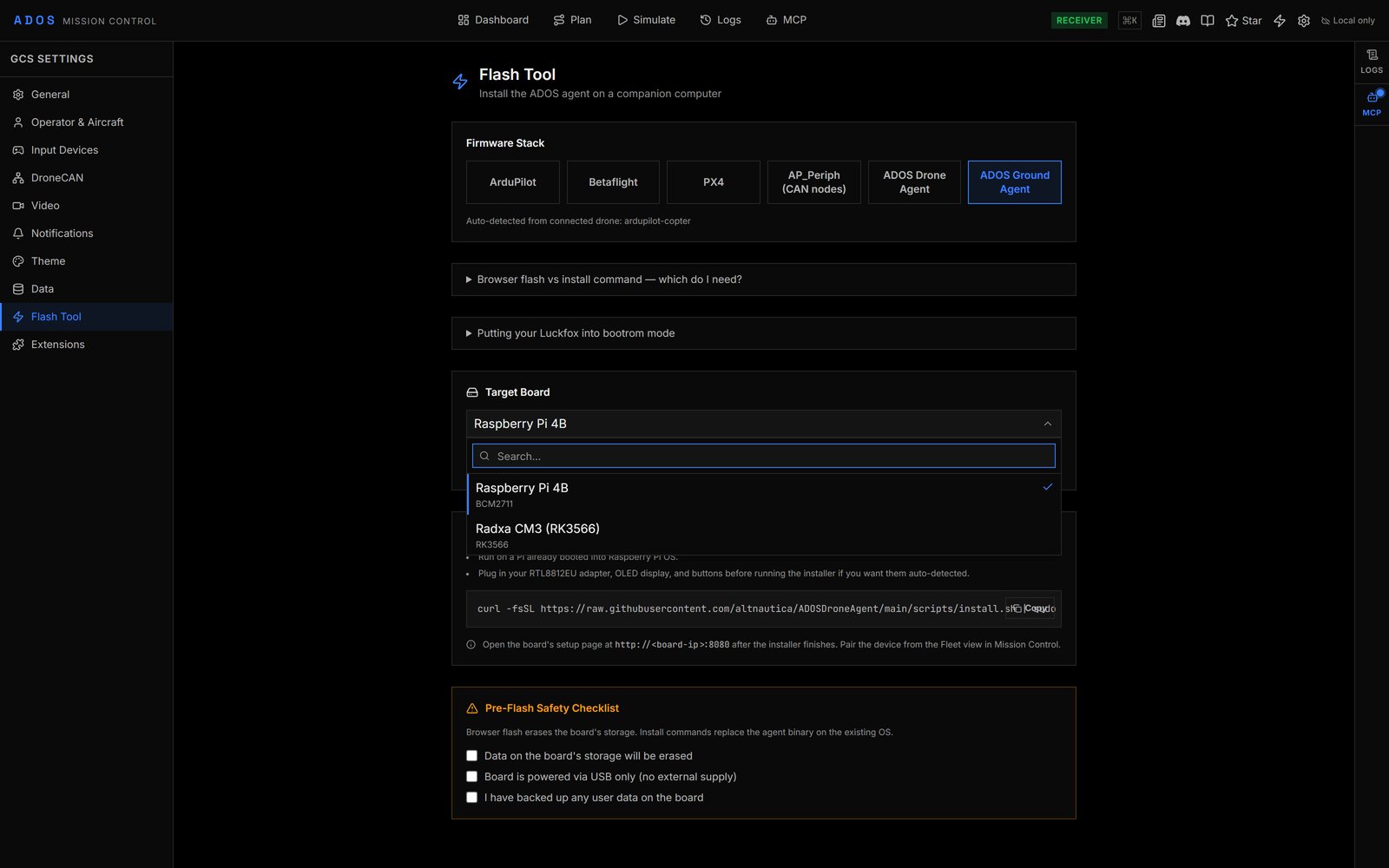
Step 1: Flash Your SBC
Start with a fresh OS image on your SBC:- Raspberry Pi 4B: Raspberry Pi OS Lite (Bookworm, 64-bit). Flash with Raspberry Pi Imager.
- Radxa boards: Official Debian or Ubuntu image from the Radxa wiki.
ados-ground).
Step 2: Boot and SSH In
Insert the SD card, connect Ethernet or WiFi, power on, and SSH in:Step 3: Plug in the RTL8812EU Adapter
Connect the USB WiFi adapter. Verify it is detected:Step 4: Install the Agent
- RTL8812EU adapter present? Yes.
- Flight controller on serial ports? No.
- OLED on I2C bus? Check.
- GPIO buttons wired? Check.
profile: ground-station in the configuration. No flags needed. No manual profile selection.
Step 5: Verify
Connecting Your Devices
You have four ways to connect to the Ground Agent.Option 1: Laptop over WiFi
- On your laptop, join the WiFi network
ADOS-GS-abc123(the SSID includes your device ID) - Open your browser and go to
http://10.0.0.1:4000 - A captive portal / setup wizard may appear on first connection
- Mission Control loads with the Ground Agent’s Hardware tab visible
- When the drone is in range, video appears automatically
Option 2: Laptop over USB Tether
Plug a USB-C cable from the Ground Agent SBC to your laptop. The SBC exposes a CDC-NCM network gadget.- macOS (Sonoma+): Works natively. A new network interface appears. The SBC is at
192.168.7.1. - Windows 11: Works natively with CDC-NCM. The SBC is at
192.168.7.1. - Windows 10: Falls back to RNDIS. May need a one-time driver install.
- Linux: Works natively. Run
ip addrto find the new interface.
http://192.168.7.1:4000 in your browser.
Option 3: HDMI Kiosk (No Laptop)
Connect an HDMI cable to the SBC and a portable monitor. The Ground Agent runs Chromium in kiosk mode, displaying the Mission Control HUD directly. Pair a USB or Bluetooth gamepad for manual flight control. The HUD shows the video feed, attitude, altitude, battery, and GPS overlaid on the video. This is the “backpack ground station” setup. SBC in a case, battery pack, portable monitor, and gamepad. No laptop required.
Option 4: Phone or Tablet
Connect your phone to the Ground Agent’s WiFi AP and open the browser. Mission Control is responsive and works on mobile screens. For a better experience, the ADOS Android app (coming soon) provides native video decoding with lower latency than the browser path.The Physical UI
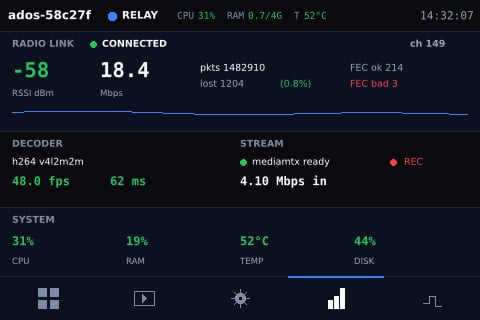
If you have wired the OLED display and 4 tactile buttons, the Ground Agent provides a physical interface.OLED Display (1.3” SSD1306, I2C)
Five screens, cycled by pressing the navigation buttons:| Screen | Shows |
|---|---|
| Link | WFB-ng signal strength, FEC stats, lost packets, bitrate |
| Drone | FC status, armed state, flight mode, battery, GPS fix |
| GCS | Connected clients (WiFi, USB, HDMI), active video streams |
| Net | Active uplinks (WiFi client, Ethernet, 4G), IP addresses, data usage |
| System | CPU, RAM, temperature, disk, uptime |
Buttons
Four GPIO buttons with short-press and long-press actions:| Button | Short Press | Long Press |
|---|---|---|
| Up | Previous screen | (reserved) |
| Down | Next screen | (reserved) |
| Select | Toggle detail view | Enter setup mode |
| Back | Return to main | Factory reset (requires confirm) |
Setup Wizard
On first boot (or after factory reset), the Ground Agent serves a captive portal setup wizard athttp://10.0.0.1. This webapp walks you through:
- Setting the WFB-ng channel (must match the drone’s TX channel)
- Connecting to an existing WiFi network for internet access (optional)
- Pairing with a Mission Control cloud account (optional)
- Setting the WiFi AP password (optional, default is open)

Uplink Matrix
The Ground Agent can connect to the internet through multiple paths simultaneously. This lets it relay cloud telemetry from the drone to Mission Control even when your laptop is on the Ground Agent’s local WiFi AP.| Uplink | How | When |
|---|---|---|
| WiFi AP | Always running | Local device connections |
| WiFi client | Join existing network | Relay cloud telemetry, software updates |
| Ethernet | Plug in cable (Pi 4B has GbE) | Fixed ground station installations |
| USB tether | Laptop shares internet | Piggyback on laptop’s connection |
| 4G LTE | SIM7600G-H modem (optional) | Remote field deployments |
convex.altnautica.com to pick the best route. If 4G is enabled, a configurable data cap (default 5GB/month) prevents runaway usage.
Troubleshooting
No WiFi AP visible:Next Steps
Your First Flight
You have the stack set up. Time to fly.
Hardware Tab
Manage the ground station from Mission Control.
WFB-ng Configuration
Tune channels, FEC, and power settings.
Physical UI
Customize OLED screens and button mappings.