What You Will Build
By the end of this page, you will have ADOS Mission Control running in your browser with 5 simulated drones. You can explore the dashboard, plan missions, try the configuration panels, and fly a simulated drone with your keyboard or gamepad. No hardware needed.Prerequisites
You need:- Node.js 18+ (LTS recommended). Check with
node --version - npm 9+ (ships with Node.js). Check with
npm --version - Git. Check with
git --version - A modern browser: Chrome, Edge, or Firefox. Chrome recommended for WebSerial support.
Mission Control uses WebSerial for USB flight controller connections and WebUSB for firmware flashing. Both require a Chromium-based browser (Chrome, Edge, Brave). Firefox works for everything except USB features.
Option A: Demo Mode (No Clone Needed)
The fastest way to try ADOS Mission Control is the hosted demo at command.altnautica.com. It loads with 5 simulated drones, demo telemetry, and all features enabled. Nothing to install. Just open the link.Option B: Run Locally
Install dependencies
Start in demo mode
Exploring the UI
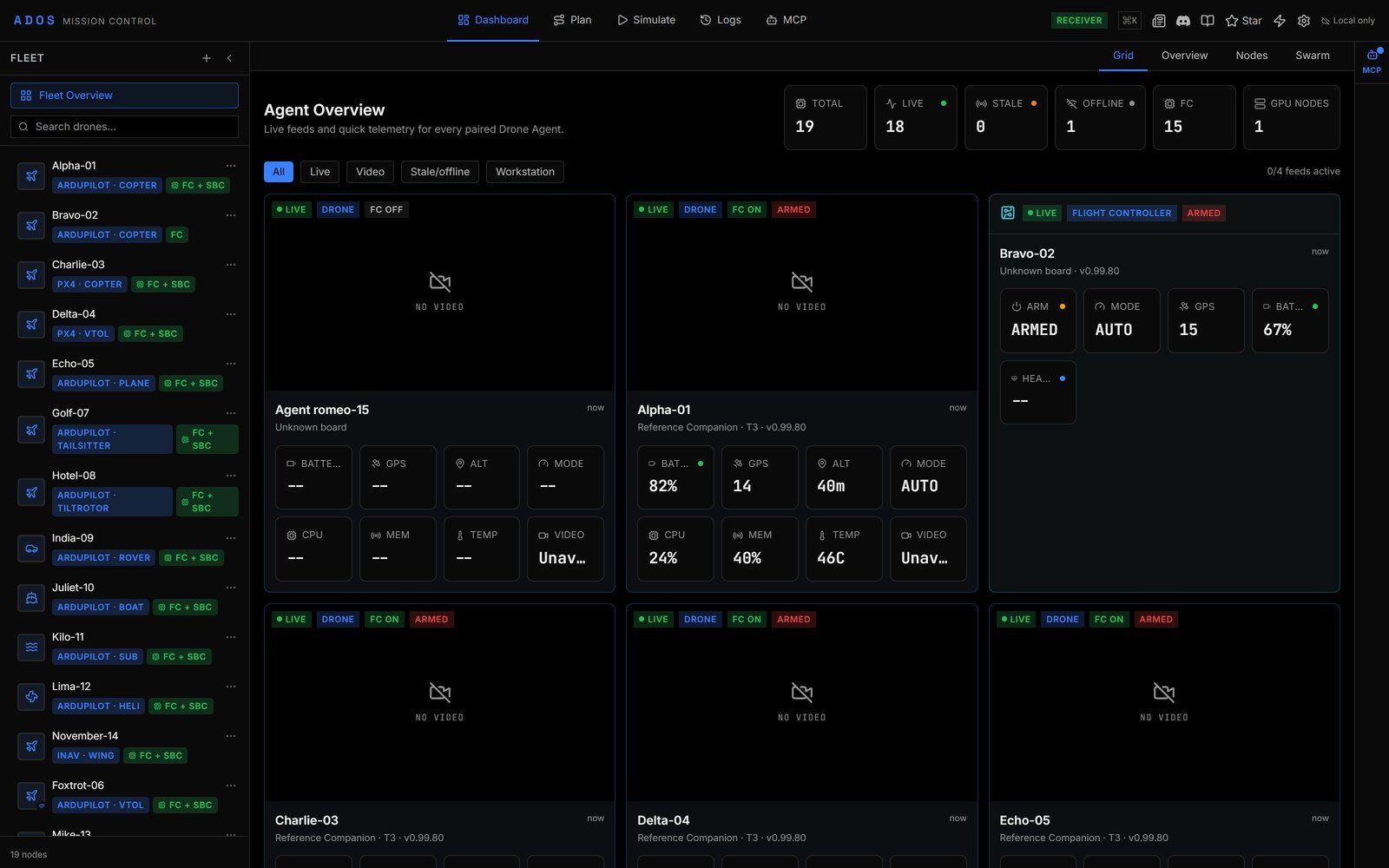
With demo mode running, click through the main tabs to see what is available.Dashboard
The home view. Shows all connected drones as cards. Click a drone card to select it and see its detail view.Plan
The mission planning interface. You can:- Drop waypoints on the map by clicking
- Use pattern generators (survey grid, corridor scan, spiral search, and more)
- Set altitude, speed, and camera trigger parameters per waypoint
- Draw geofences and set rally points
- Import and export missions in multiple formats (QGC WPL, KML, CSV)

Configure
36+ configuration panels for your flight controller. In demo mode, these show example values. With a real FC connected, you can read and write parameters. Key panels include:| Panel | What It Does |
|---|---|
| Failsafe | Battery, GCS, and RC loss behavior |
| PID Tuning | Rate and stabilize PIDs with live response graph |
| Power | Battery monitor setup (voltage divider, amps per volt) |
| OSD Editor | Drag-and-drop on-screen display layout (4 screens) |
| Ports | Serial port protocol assignment (25+ protocols) |
| Sensors | Rangefinder, optical flow, airspeed, barometer config |
| Gimbal | Mount type, axis limits, ROI targeting |
Flight Control
Manual flight controls. This tab shows when a drone is selected. You can:- Arm and disarm
- Change flight modes (25+ modes for ArduPilot)
- Fly with a gamepad or HOTAS at 50Hz input rate
- Fly with keyboard (WASD + arrow keys)
- Set guided mode waypoints by clicking the map
Simulate
3D mission simulation. Upload a mission plan and watch it execute with terrain following, camera trigger markers, and timing estimates.Connecting a Real Flight Controller
If you have an ArduPilot, PX4, or Betaflight flight controller on your desk, you can connect it right now.Start in normal mode
Plug in your flight controller
Connect the FC to your laptop with a USB cable. Make sure it is powered (some FCs need a battery connected for USB to work, others do not).
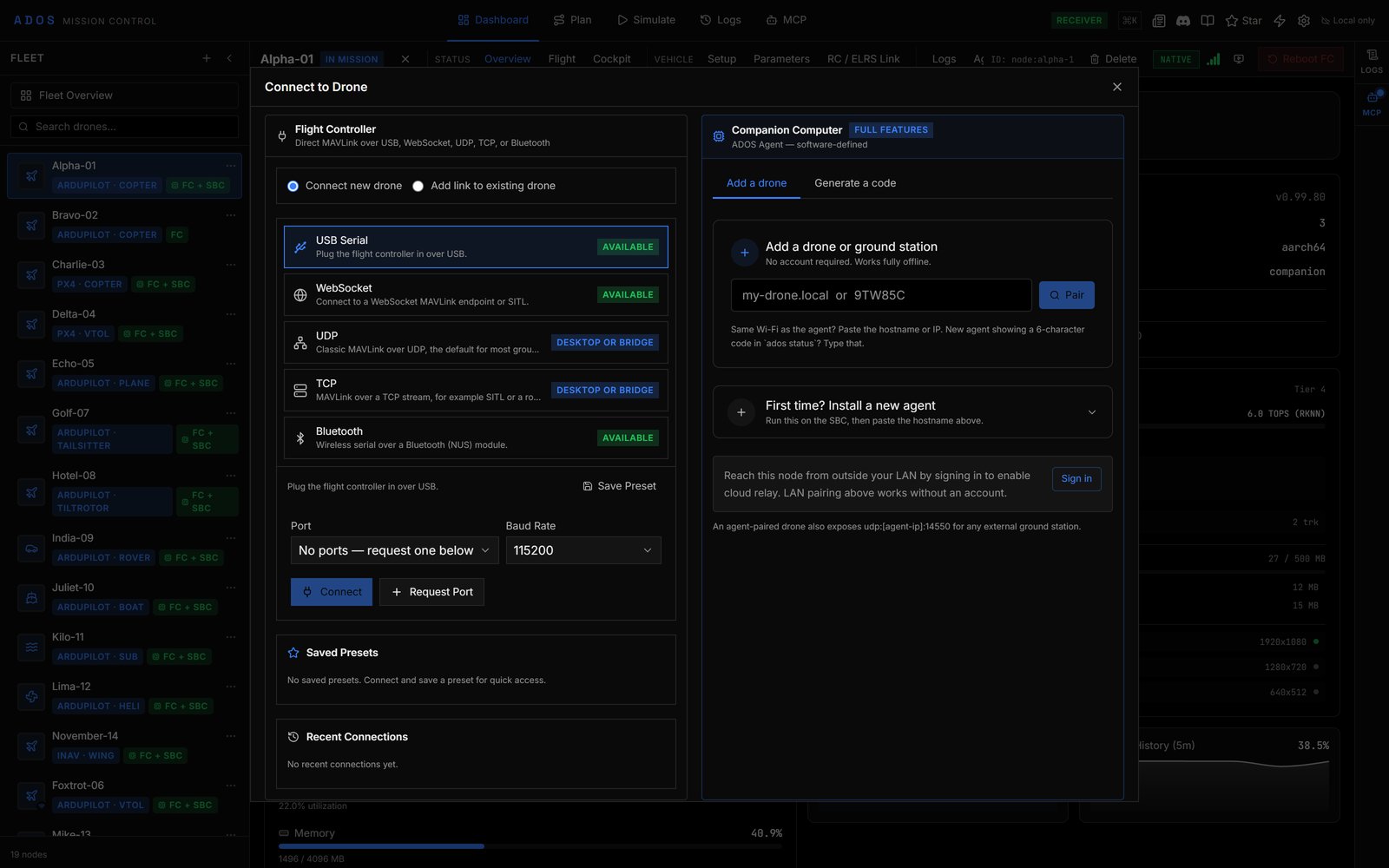
Click Connect
Click the Connect button in the top navigation bar. A browser dialog will appear listing available serial ports.
Select your flight controller and click Connect. Mission Control will:

- Open the serial port at the detected baud rate
- Send a MAVLink heartbeat
- Request autopilot version and capabilities
- Request data streams (attitude, GPS, battery, RC, sensors)
- Download the full parameter list
Verify the connection
The top bar will show the firmware type (ArduPilot, PX4, or Betaflight), vehicle type (Copter, Plane, Rover, etc.), and firmware version. The dashboard card will show live telemetry.If connection fails, check:
- Is the FC powered?
- Is another application (Mission Planner, QGroundControl, Betaflight Configurator) holding the serial port?
- Are you using Chrome, Edge, or another Chromium-based browser? Firefox does not support WebSerial.
Running with SITL
ADOS ships with a SITL (Software In The Loop) launcher that runs a full ArduPilot simulation with real physics. This is useful for testing mission planning, flight modes, and the full MAVLink stack without hardware.Install ArduPilot SITL
Follow the ArduPilot SITL setup guide to build ArduPilot from source. The SITL binary lands in
~/.ardupilot/.Start the SITL bridge
Connect from Mission Control
In Mission Control, click Connect and choose the SITL WebSocket option. You will see a simulated ArduPilot copter with GPS, battery, and full parameter set.You can arm, take off, switch modes, upload missions, and fly. The physics simulation includes gravity, drag, wind, and motor response. It is the same simulation that ArduPilot developers use.
Running as a Desktop App
Mission Control can also run as an Electron desktop app. This gives you a standalone window with native serial port access (no WebSerial browser restrictions).Environment Variables
| Variable | Default | Purpose |
|---|---|---|
NEXT_PUBLIC_DEMO_MODE | false | Enable demo mode with 5 simulated drones |
PORT | 4000 | Dev server port |
NEXT_PUBLIC_CONVEX_URL | (none) | Convex backend URL for cloud features |
NEXT_PUBLIC_MQTT_URL | (none) | MQTT broker URL for real-time telemetry |
Project Structure
A quick orientation of the codebase:Next Steps
Your First Flight
Connect a real flight controller and fly.
Quickstart: Drone Agent
Install the agent on a companion computer.
Mission Planning
Deep dive into the mission planner.
FC Configuration
Explore all 36+ configuration panels.