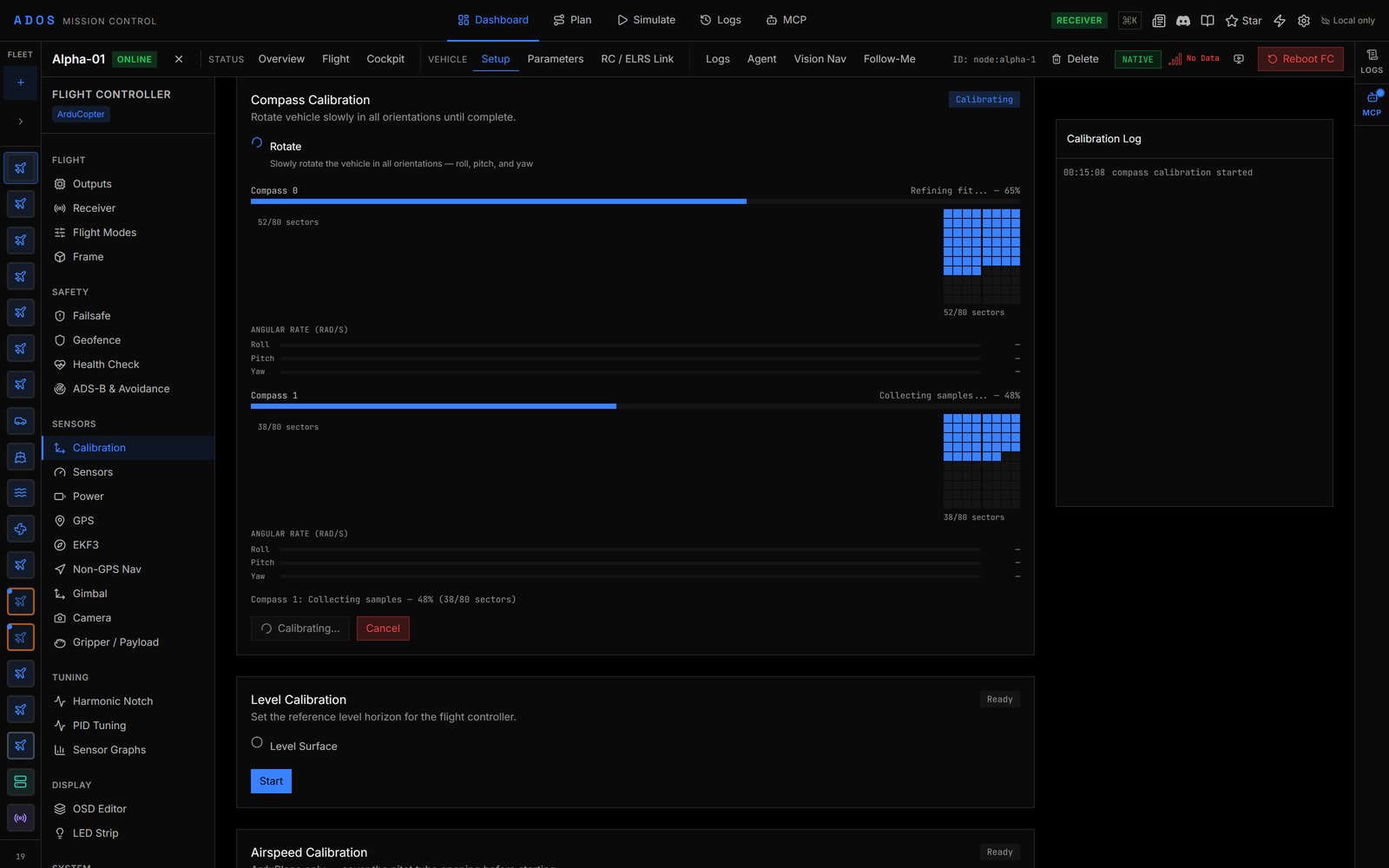
Proper sensor calibration is essential for safe flight. Mission Control provides guided calibration wizards that walk you through each step, show progress in real time, and report success or failure with diagnostic details.
Calibration wizard with step indicators and compass progress bars

Calibration Types

Mission Control supports 9 calibration types for ArduPilot and PX4. Not all types apply to every vehicle or firmware.
TypeDescriptionWhen to do it
AccelerometerCalibrates the 3-axis accelerometer for level and orientationAfter first setup, after moving the FC to a new position on the frame
GyroscopeCalibrates gyro bias (zero-rate offset)After first setup. Place the vehicle on a flat, still surface.
CompassCalibrates magnetometer offset and scale factorsAfter first setup, after changing electronics or wiring, if compass shows errors
LevelSets the vehicle’s level orientation referenceAfter mounting changes that shift the FC angle
RC CalibrationMaps RC stick endpoints and center positionsAfter binding a new transmitter or changing channel assignments
ESC CalibrationSets ESC throttle range (min/max PWM)After installing new ESCs, or when motors do not spin evenly
AirspeedCalibrates the differential pressure airspeed sensorFixed-wing and VTOL vehicles with a pitot tube
BarometerCalibrates the barometric pressure sensor baselineRarely needed. Useful at high altitude or with known baro drift.
CompassMotMeasures magnetic interference from motors/powerAfter any wiring change near the compass. Recommended for all builds.

Calibration Wizard

Each calibration type uses a step-by-step wizard:
1

Select calibration type

Open the Calibration panel from the Configure section. Choose the calibration you want to perform.
2

Follow position instructions

For multi-position calibrations (accelerometer, compass), the wizard tells you which orientation to hold. For example: level, left side down, right side down, nose down, nose up, on its back.
3

Wait for data collection

Hold the vehicle still in the requested position. The progress bar fills as the FC collects samples.
4

Move to next position

When the current position is complete, the wizard advances to the next step. Repeat until all positions are done.
5

Review results

The wizard shows success or failure. For compass calibration, per-compass fitness values and orientation results are displayed.

Accelerometer Calibration

The accelerometer calibration uses 6 positions:
  1. Level - Place the vehicle flat on a level surface
  2. Left side - Tilt so the left side faces down
  3. Right side - Tilt so the right side faces down
  4. Nose down - Tilt forward so the nose points down
  5. Nose up - Tilt back so the nose points up
  6. On its back - Flip the vehicle upside down
At each position, hold the vehicle still for a few seconds while the FC collects accelerometer samples. The wizard tells you when to move to the next position.
Use a flat table or calibration jig for accurate results. The flatter and more stable the surface, the better the calibration.

Compass Calibration

Compass calibration is the most involved process. You rotate the vehicle in all orientations while the FC collects magnetic field readings. What the wizard shows:
  • Per-compass progress (% complete) for each magnetometer
  • Compass direction vectors in real time
  • Completion mask showing which orientation sectors have been sampled
  • Fitness score after calibration (lower is better)
  • Old vs new orientation if the compass orientation changed
How to do it:
  1. Start the calibration from the wizard.
  2. Pick up the vehicle and slowly rotate it in all directions. Tilt, spin, and yaw to cover every orientation.
  3. Watch the progress bars. When all compasses reach 100%, the calibration completes automatically.
  4. Review the fitness scores. Fitness below 20 is good. Above 50 suggests magnetic interference.
Perform compass calibration outdoors, away from metal structures, cars, and power lines. Indoor calibration near steel or electronics produces poor results.

RC Calibration

RC calibration maps your transmitter’s stick ranges to the FC’s expected input range.
1

Start RC calibration

Select RC Calibration in the wizard. Make sure your transmitter is bound and connected.
2

Move all sticks to extremes

Move each stick to its full range in all directions. The channel bars show the min, center, and max values for each channel.
3

Center all sticks

Return all sticks to their center positions. The wizard records the center values.
4

Complete

The wizard writes the calibrated values to the FC. Channel ranges are now set.

ESC Calibration

ESC calibration sets the throttle range so all ESCs respond identically to the same throttle command.
Remove propellers before ESC calibration. The motors will spin during the process.
  1. Start ESC calibration from the wizard.
  2. The FC sends the maximum throttle signal, then the minimum signal.
  3. ESCs learn the range and beep to confirm.
  4. The process completes in about 10 seconds.

CompassMot

CompassMot measures how much magnetic interference the motors and power wiring create at the compass location.
  1. Start CompassMot from the wizard.
  2. The FC slowly ramps up throttle while recording compass readings.
  3. The result is a percentage: 0% means no interference, 100% means the compass is unusable at full throttle.
  4. Below 30% is acceptable. Above 30%, consider relocating the compass farther from power lines and motors.

Calibration Log

During calibration, a log panel shows real-time messages from the FC:
  • Status messages with progress updates
  • Warning messages for issues (e.g., “Sample not level enough”)
  • Error messages for calibration failures
  • Keyword matching highlights important messages
If a calibration fails, the log often contains the reason (e.g., “Insufficient rotation” for compass, “Timeout waiting for data” for accelerometer).

Reboot Banner

Some calibrations require a flight controller reboot to apply the new values. When this is the case, a persistent banner appears at the top of the panel with a “Reboot” button. You can also reboot by power-cycling the FC.

Preflight Checks

The Pre-Arm Checks section shows whether calibration is current:
  • Green: Sensors calibrated and healthy
  • Yellow: Calibration may be stale or marginal
  • Red: Calibration required before arming
The FC will refuse to arm if required calibrations have not been performed.