

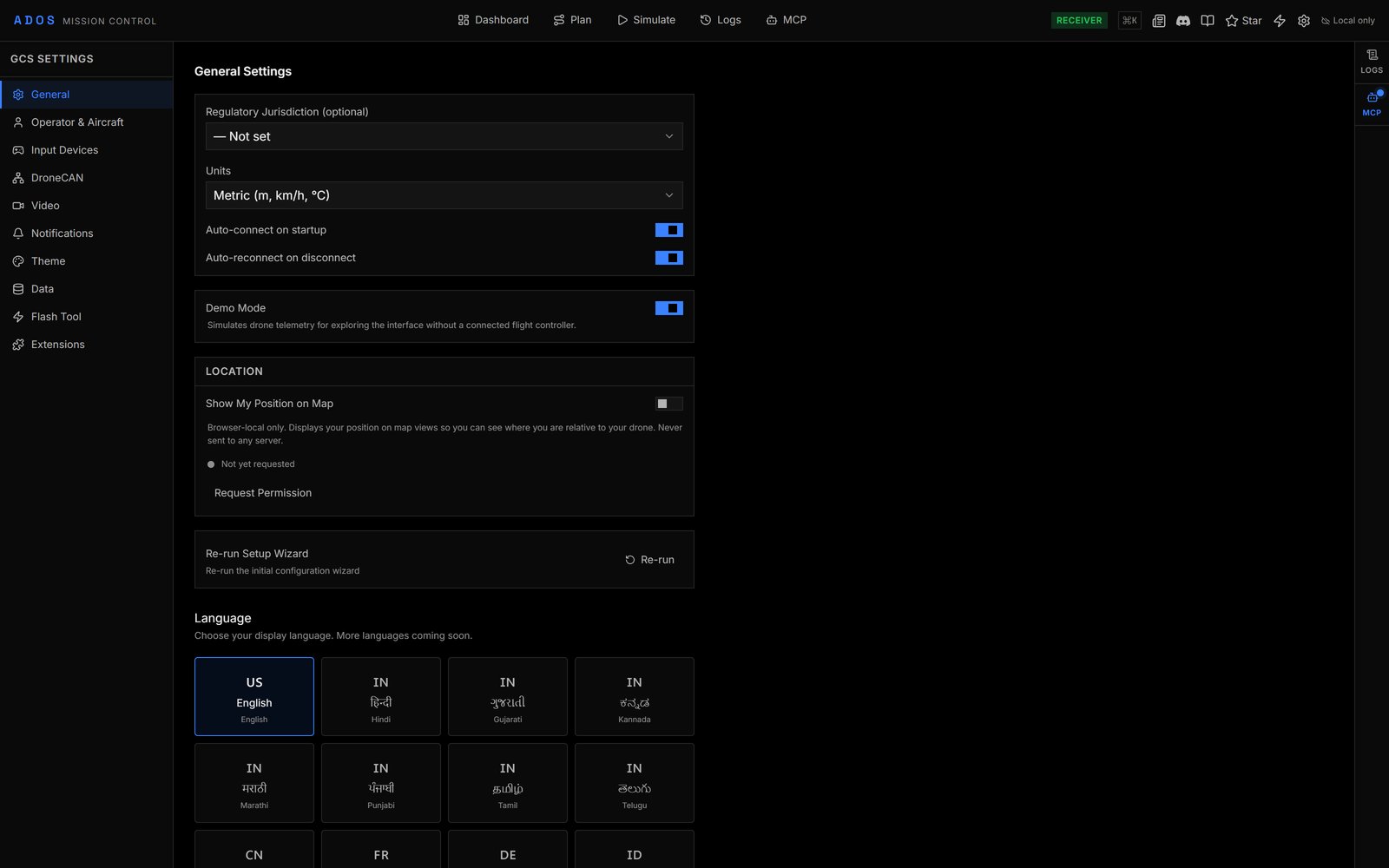
Settings, General page.
Pages
The GCS Settings navigation lists ten pages:General
Jurisdictions:
The registration label appears on the drone’s Flight tab info card.
Language: choose from 16 languages: English, Hindi, Gujarati, Kannada, Marathi, Punjabi, Tamil, Telugu, Chinese, French, German, Indonesian, Japanese, Korean, Portuguese and Spanish. The interface switches without a reload.
About (desktop app only): Check for updates asks GitHub for a newer release now, instead of waiting for the next start. See Desktop app updates.
Operator & Aircraft
Registries used for compliance exports and for the pilot, aircraft and loadout snapshot saved with each flight:- Pilot, Organisation, Insurance and Defaults (default jurisdiction).
- Aircraft: name, registration, manufacturer, model, serial and Remote ID serial, vehicle type, category, maximum take-off mass, airworthiness and maintenance dates.
- Batteries: label, serial, chemistry, cell count, capacity, C rating and cycles. Retire or delete a pack.
- Equipment: propeller, motor and ESC sets, cameras, gimbals, payloads, frames and RC transmitters, with hours and flights. Mark an item inspected or retire it.
Input Devices
The page title is Controllers.- Devices (with an agent connected): controllers attached to the ground station agent. Scan Bluetooth pairs a new one; Set as primary picks the controller that sends sticks.
- Paired Bluetooth devices: Forget removes one.
- Browser Input: controllers attached to this browser through the Web Gamepad API. Turn Stick control on, run Calibrate, choose the Stick mode (Mode 2, throttle on the left stick, by default; or Mode 1), and tune Deadzone and Expo Curve.
- Skill & Keyboard Bindings: loadout presets and the key and gamepad button for each Skill slot.
DroneCAN
CAN Configuration for the connected flight controller:- Bus setup: CAN1, CAN2 and SLCAN passthrough, with Save to FC, Write to flash, Reload from FC and Reboot FC.
- Node browser: detected DroneCAN nodes.
- Per-node params: read and write a node’s parameters.
- Bus monitor: raw MAVLink frames and decoded DroneCAN transfers.
- Diagnostics: bus diagnostics.
- Test utilities: node ping, manual frame inject, node-ID conflict scanner, ESC sweep, GPS fix snapshot and compass stream.
Video
Shows the current resolution. Bitrate, codec and resolution are set per node, on the node’s Agent → Cameras page. The transport is chosen in the video card’s switcher; see Video feed.Notifications
Reset seen entries shows past changelog entries again.
Theme
Pick a theme from the searchable list. The default is Dark.- Core: Dark, Light and Mono.
- Solarized: Solarized Dark and Solarized Light.
- Dark themes: Dracula, Catppuccin Mocha, Catppuccin Frappé, Nord, Gruvbox Dark, One Dark, Tokyo Night, Rosé Pine, Monokai, Kanagawa, Synthwave ‘84 and GitHub Dark.
- Light themes: Catppuccin Latte and Gruvbox Light.
- Mid-tone: Ayu Dark, Ayu Mirage and Everforest Dark.
Data
Download and manage offline map tiles for flying without internet.Flash Tool and Extensions
- Flash Tool opens the firmware flasher. See Flash Tool.
- Extensions is a read-only overview of what is installed across the fleet, grouped per node, plus the registry browser. Installs happen per node from the node’s Agent → Extensions page. An extension’s detail page shows a Failure reason field when a LAN-paired node has stopped or refused it. See Install extensions from Mission Control.
Next steps
Cockpit and Skills
Bindings, loadouts and stick control in use.
Flash Tool
Flash flight controllers, CAN nodes and companion boards.