

/mcp) sets up ADOS MCP, a Model Context Protocol connector you run on your own machine. With it, an AI client such as Claude Code, Cursor or Claude Desktop can read your drones and, within the scopes you grant, operate them. No model runs on the drone. The connector itself, its tools and the agent-side token settings are documented on MCP server and AI control.
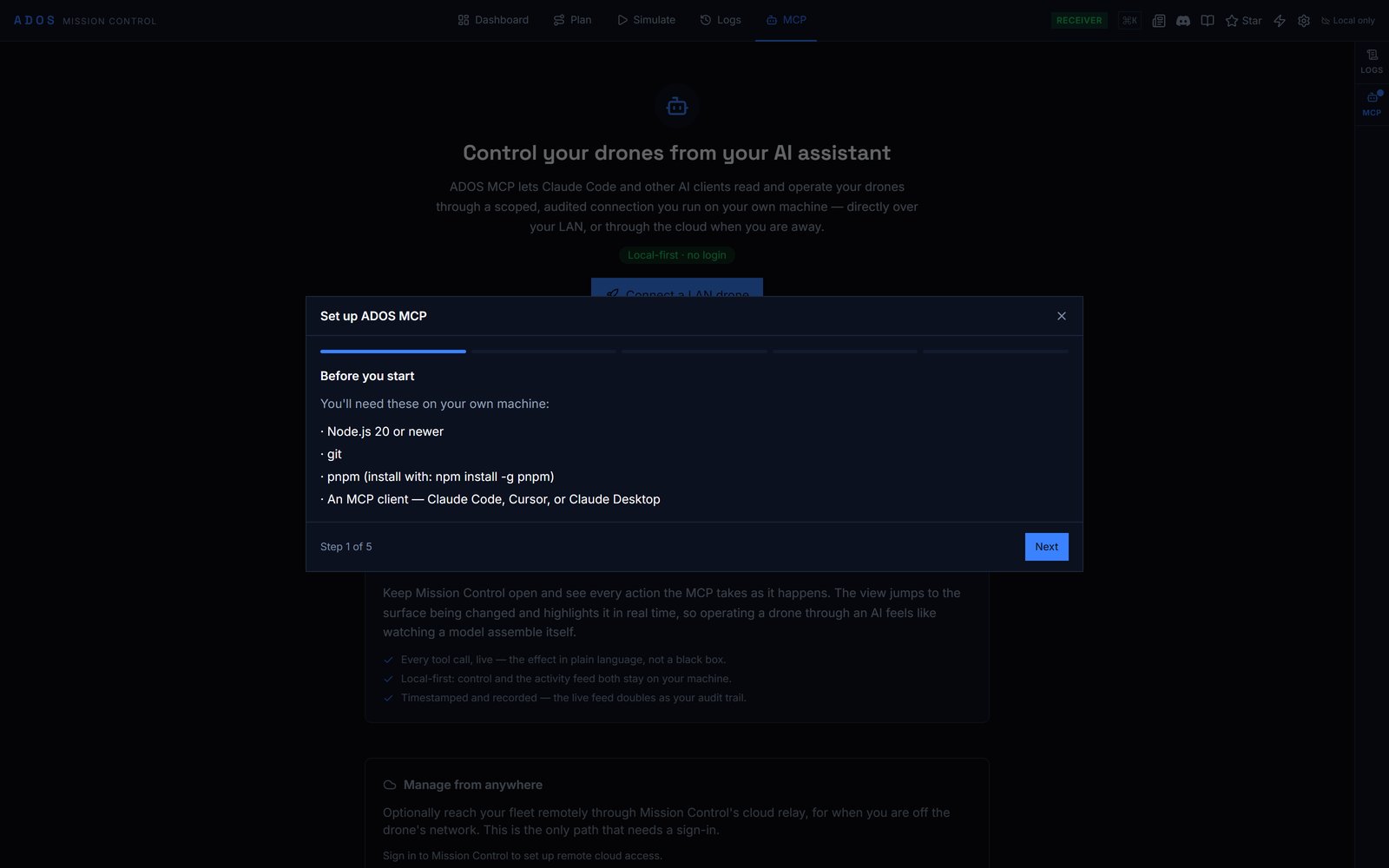
The MCP setup wizard.
What it does
Without any MCP credential, the tab shows the landing page: Control your drones from your AI assistant. It explains the three things the connector gives an AI client (Read everything, Operate the fleet, Safe by design) and offers two ways in:- Connect a LAN drone: the local setup wizard. No sign-in needed.
- Set up cloud access: mint a credential for reach through the cloud relay. Needs sign-in.
Setup wizard
Connect a LAN drone opens Set up ADOS MCP, five steps:-
Before you start: Node.js 20 or newer, git, pnpm (
npm install -g pnpm), and an MCP client. -
Get the server: clone the connector and run its setup script, which checks for Node.js 20 and pnpm, installs, builds, and prints your connect command with the local path filled in:
- Pick your drones: Control all my drones (the default) or Choose specific drones instead, plus Also auto-adopt new drones on my LAN (off unless you turn it on). Only drones paired over the LAN are listed; each connection uses that drone’s own pairing key, so nothing routes through the cloud.
-
Add it to your client: one drone gives a
claude mcp addcommand for--target agent <host>with the pairing key inADOS_MCP_AGENT_KEY. Several drones give one command for--target local-fleetwith every drone’s address and key inADOS_MCP_FLEET, or a downloadableados-fleet.jsoninstead. Each has a.mcp.jsonalternative that reads the secret from your environment, so the file is safe to commit. -
Check the connection: probes each drone over the LAN and reports Reachable or Unreachable, with Check again. The command it shows runs the connector with
--verify, which checks auth and reachability, prints the result and exits.
Credentials console
Signed in with at least one credential, the tab shows the console. Its sidebar has:- Overview: credential count, active count and last activity.
- Connect: the LAN recipe again, and Manage from anywhere with the Claude Code command and a
.mcp.jsonsnippet for cloud reach. - Credentials: every credential with created and last-used dates, status (Active, Revoked or Expired), Details and Revoke.
- Scopes & roles: what each scope group allows: read, safe_write, admin, flight, destructive and secret_read.
- Built-in tools and Extensions: the tools the connector exposes, including tools from installed extensions.
- Audit log: every call with its outcome (Allowed, Confirmed, Denied or No operator).
ADOS_MCP_TOKEN with --target fleet --gcs prod.
Activity rail
The MCP button on the right rail opens MCP Activity: live tool calls as they happen, filterable by Drone, Mission, Config or Query. Expand a call to see the tool, node, arguments, result and latency, then Jump to surface to open the part of Mission Control it touched. Turn on Follow to jump automatically. On the hosted site the rail reads MCP activity is local, because it streams from the connector on your own machine.Remote reach
A credential minted here reaches your fleet through the cloud relay, so the AI client works when you are off the drone’s network. Each request is checked against the credential’s scope and allowed nodes, and recorded in the audit log. Revoking a credential cuts it off immediately. Tools that need a direct connection to the agent are not available through a cloud credential.Next steps
MCP server and AI control
The connector, its tools and the agent’s token settings.
Cloud features
Sign-in, roles and the cloud relay.