

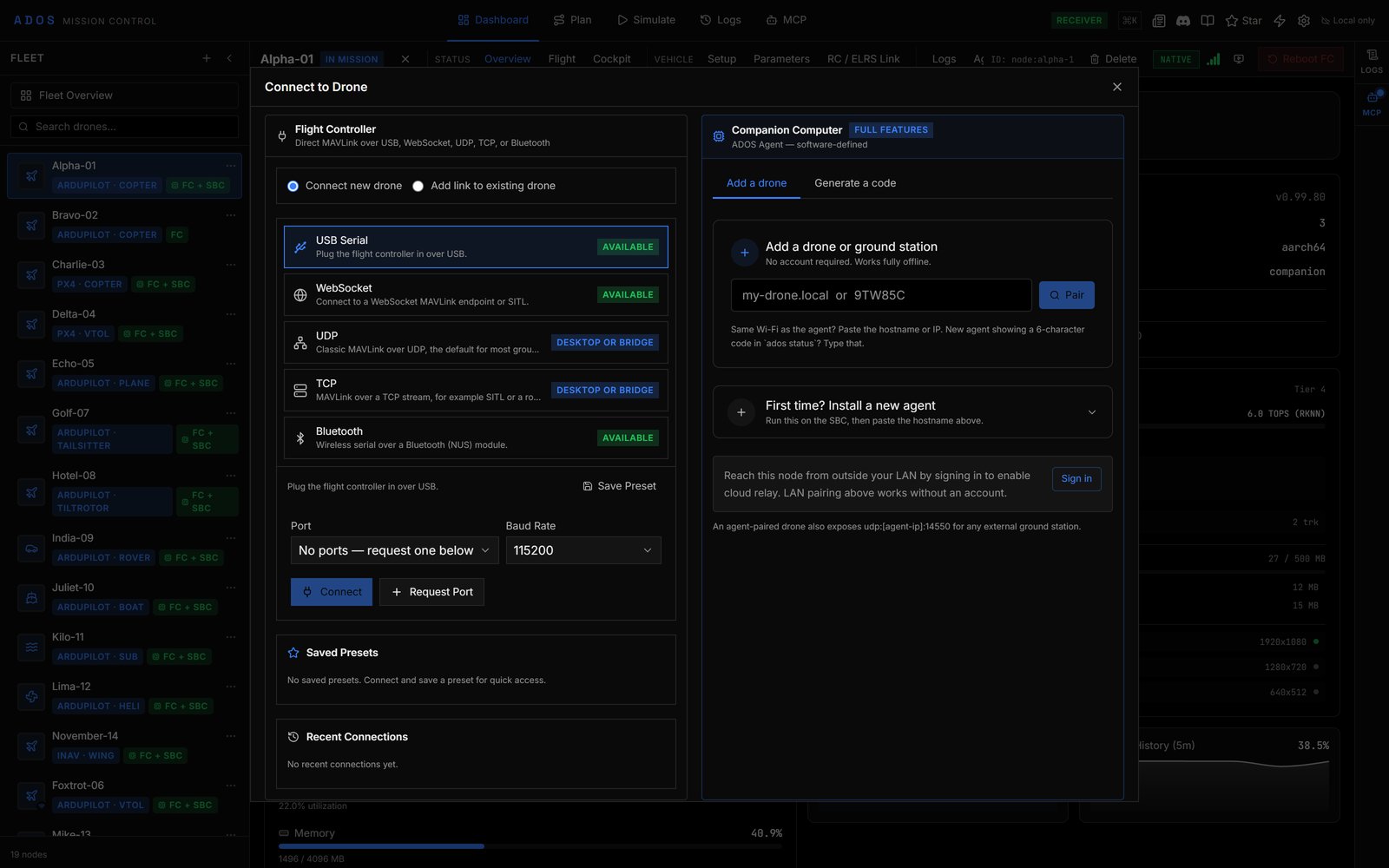
The Connect to Drone dialog with USB Serial selected.
- Flight Controller: direct MAVLink (or MSP) to a flight controller over USB Serial, WebSocket, UDP, TCP or Bluetooth.
- Companion Computer: add a node running the ADOS Drone Agent or Ground Agent. This path gives the full feature set: agent status, video, node configuration and extensions.
Direct to a flight controller
Pick a method card. Each card carries an availability chip:USB Serial
1
Plug in the flight controller
Use a data-capable USB cable and power the flight controller.
2
Choose the port
Select USB Serial, then click Request Port. The browser lists serial devices; pick your flight controller. Ports you granted before appear in the Port list.
3
Set the baud rate
Baud Rate defaults to 115200. The options are 57600, 115200, 230400, 460800 and 921600.
4
Connect
Click Connect. Mission Control detects the firmware and loads the matching protocol, parameters and panels.
WebSocket
Enter aws:// URL and click Connect. The default is ws://localhost:14550. Quick presets fill in a local mavlink-router and SITL instances SITL #1 to SITL #5 (ws://[::1]:5760, 5770, 5780, 5790 and 5800).
The bundled SITL bridge binds ::1 and requires a per-run token. Paste the whole ws://[::1]:5760/?token=… URL it prints at startup; Connect stays disabled while a SITL URL has no token. See SITL testing.
When a SITL URL is detected, a SITL Build Preset picker appears. A preset only names the simulated vehicle in the fleet (FPV, Long Range, Heavy Lift and others). It writes no parameters; the simulator keeps its own frame, battery and sensor settings.
The Drone Agent also serves MAVLink over WebSocket on port 8765. For a paired agent, use the Companion Computer column instead: the raw
:8765 socket can refuse off-box clients that do not present a pairing ticket.UDP and TCP
UDP defaults to Listen on0.0.0.0:14550 (the other mode is Target). TCP defaults to 127.0.0.1:5760.
- Desktop app: the panel reads Native socket ready (desktop app). and connects directly. Native sockets reach local addresses only. See Desktop app.
- Browser: a web page cannot open a raw socket, so run the local bridge from a clone of the Mission Control repository (Node.js 20 or newer). It is not published to npm.
Point the GCS at: ws://127.0.0.1:14551/?token=… with a fresh token on every run. Paste that whole URL into Bridge URL and click Check; Bridge reachable. means it is ready. Other inputs are tcp:127.0.0.1:5760, udpin: and udpout:. If you serve Mission Control from an address other than loopback, add --allow-origin <origin> so the bridge accepts the page.
Bluetooth
Select Bluetooth and click Scan & Connect. The flight controller or its module must expose the Nordic UART Service; this works with Betaflight, iNav and most BLE-enabled flight controllers. Web Bluetooth needs a Chromium browser in a secure context (HTTPS or localhost).Firmware detection
Presets and recent connections
Click Save Preset to store the current method and settings under a name (not available for Bluetooth). Saved Presets and Recent Connections sit under the method cards.Redundant links
When a drone is already connected, choose Add link to existing drone instead of Connect new drone, then pick the drone under Target drone (sysid match required). The new transport must reach the same MAVLink system id as that drone, otherwise it is rejected. Mission Control then holds two links to one vehicle. The drone’s Overview tab lists them in a Links panel: each link’s type and label, how long ago it last delivered data (or No data yet), and a Primary badge on the link that carries commands. The × on a row removes that link; removing the last one disconnects the drone.Automatic reconnect
With Auto-reconnect on disconnect on (the default, in Settings), a direct link over USB Serial, WebSocket, UDP or TCP that drops unexpectedly is re-dialled every 3 seconds, with no attempt limit, until the vehicle answers again. A toast says the drone disconnected and is reconnecting, and the Fleet sidebar shows a row reading : reconnecting (attempt ) with a Stop reconnecting button. The toast also carries Stop reconnecting. A reconnect only reattaches the same vehicle: a different aircraft answering on the same port or address is not adopted. A Bluetooth link cannot be re-dialled in the background, because the browser opens a Bluetooth device only from a click; reconnect it from the Connect dialog. A flight controller reached through a paired agent is reconnected by that agent’s link, not by this cycle.Through the ADOS Agent
The Companion Computer column adds a node running the Drone Agent or Ground Agent.- Add a drone
- Generate a code
On the same network as the node, type its hostname or IP (for example
ados-9f2c1a.local or 192.168.1.50) and click Pair. A new agent also shows a 6-character code in ados status; you can type that code instead. No account is needed and nothing is stored in the cloud. Agents found by the LAN scan are listed below the field.ADOS uses “pairing” for three separate things. A ground station normally needs the first two.
- Mission Control pairing gives one Mission Control owner an API key for the node. See Pairing.
- Air-link pairing (WFB-ng bind) exchanges radio keys between a drone and a ground station. See WFB-ng pairing.
- Mesh pairing joins a relay to a receiver in a ground mesh. See Build a mesh.
192.168.4.1, or 192.168.7.1 over USB tether.
Cloud relay
When the node is on a different network (for example a cellular uplink), sign in and pair it to your account. Mission Control then reaches it through the cloud relay: status and commands go through Convex, live telemetry through MQTT, and video through WebRTC with MQTT signalling. See Cloud features. Prefer the LAN path whenever you can. A page served over HTTPS (including the hosted version) cannot fetch a plain-HTTP agent, because browsers block mixed content. To work with a LAN agent, serve Mission Control over plain HTTP (http://localhost:4000 or http://<lan-ip>:4000) or use the desktop app.
Connection health
After connecting, the node header shows a connection quality meter. Telemetry is treated as fresh for 2 seconds; after 2 seconds it is stale, and after 5 seconds it is lost and readouts show--.
Troubleshooting
No serial ports appear in the picker
No serial ports appear in the picker
Check that the USB cable carries data. Try another port. On Linux, add your user to the
dialout group (sudo usermod -aG dialout $USER) and log out and back in.Connected but no telemetry
Connected but no telemetry
Check the baud rate, and that no other ground station holds the serial port. Only one application can own a serial port at a time.
SITL WebSocket is refused
SITL WebSocket is refused
Paste the full URL with
?token= that the SITL tool printed for this run. The token changes every time the tool starts.Bridge not reachable
Bridge not reachable
Check that
mavlink-bridge is running and that the Bridge URL includes the ?token= it printed.Mission Control uses the cloud instead of my LAN agent
Mission Control uses the cloud instead of my LAN agent
The page is served over HTTPS, so it cannot reach a plain-HTTP agent. Serve Mission Control over plain HTTP on the LAN, or use the desktop app, and pair the agent by hostname or IP.
Next steps
Dashboard and fleet
Find the node you just added and open its detail panel.
Cockpit and Skills
Fly with video, a HUD and bound Skills.
Drone Agent pairing
How pairing works on the agent side.