

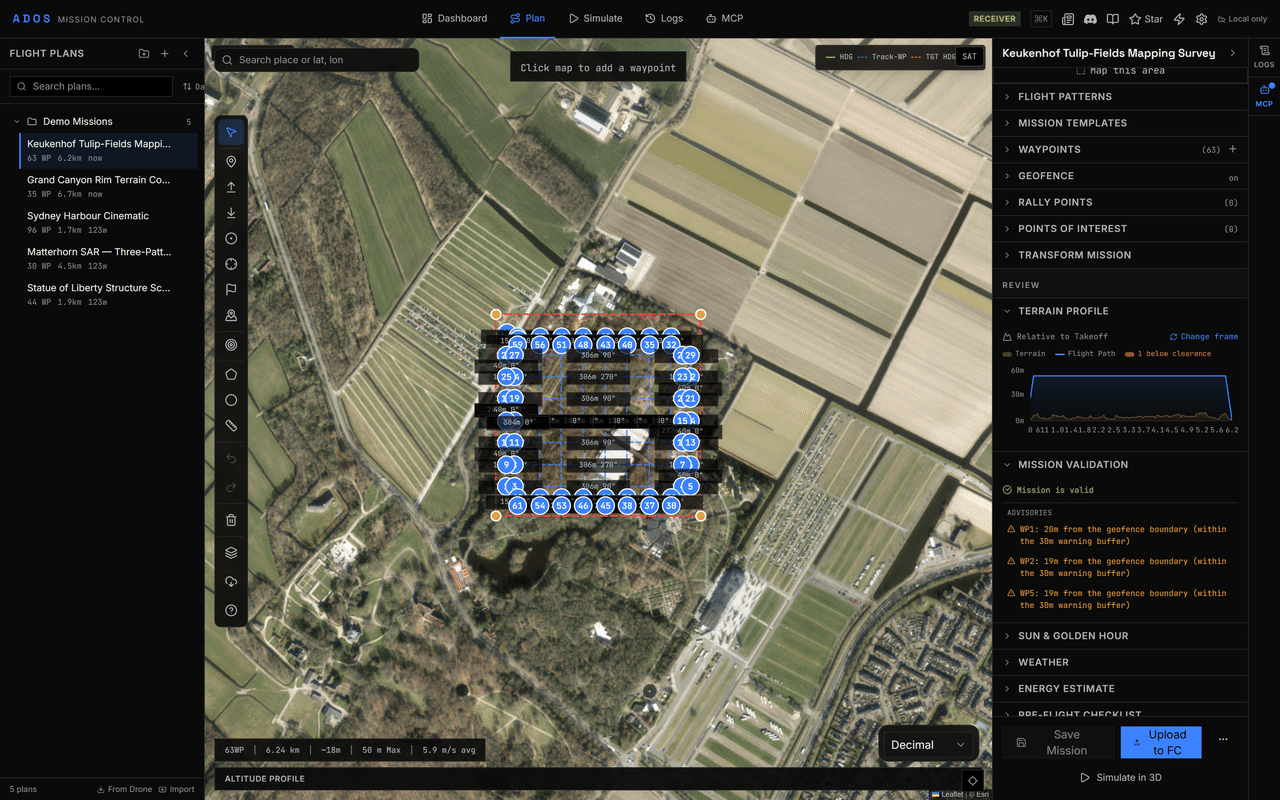
Plan tab with a loaded mission, the right panel open and the Terrain Profile expanded.
Layout
Create a mission
1
Open or create a plan
Click Plan in the top navigation. Pick a plan in the FLIGHT PLANS library, or click New Plan. The map tools stay inactive until a plan is open.
2
Set the defaults
In Defaults, set the default altitude, speed, accept radius and altitude frame: Relative (Home), Absolute (MSL) or Terrain Following. New waypoints take these values.
3
Place waypoints
Choose the Waypoint tool (
W) and click the map. Use the Takeoff (K), Land (J), Loiter (O) and ROI (R) tools for those commands. Click a waypoint to select it; expand it in Waypoints to edit its command, altitude, speed and attached actions.4
Review
Open Mission Validation (
I). Issues update as you edit. Blocking issues disable Upload to FC and the button shows the error count. Check the Terrain Profile (T) for ground clearance.5
Save and upload
Click Save Mission to store the plan in the library, then Upload to FC. A pill next to the buttons shows whether the plan on the aircraft matches the plan in the editor.
Map tools
Right-click the map for the context menu, for example to insert a waypoint at that point.
Commands
A waypoint’s own command is always a navigation command. Actions attach to a waypoint through its action timeline. Navigation commands
Attached actions
iNav flies only three attached actions:
ROI, DO_JUMP and CONDITION_YAW. Upload to an iNav flight controller refuses any other action. See iNav guide.Terrain profile
With the Terrain Following frame, or to check clearance on any plan, the planner looks up ground elevation for each waypoint from the Open Elevation API and caches the results. The Terrain Profile section plots ground elevation against the flight path and marks legs with low clearance. Validation reports a blocking issue when clearance is too low, and an advisory when terrain could not be checked.Batch edit
Select several waypoints (Shift-click). The Batch Edit section appears with four operations: set altitude, set speed, set command, and delete the selected waypoints.Transform mission
Transform Mission moves, rotates or scales the whole mission around its centre. Relative positions and altitudes stay the same.Mission validation
Validation runs continuously. Blocking issues stop the upload; advisories are shown but do not.Blocking issues
Blocking issues
- Empty mission
- Mission starts above the ground with no Takeoff command
- An action used as a navigation command, or an action with no location
- Invalid coordinates (waypoints, actions or rally points)
- Duplicate sequence numbers
- Altitude above the ceiling or below the minimum
- Waypoint outside the geofence or inclusion zone, or inside an exclusion zone
- A leg that crosses an exclusion zone
- Invalid
DO_JUMPtarget, or a jump loop with no exit - Terrain clearance too low
- RTL altitude too low
- Rally point outside the fence or inside an exclusion zone
Advisories
Advisories
- Too few waypoints, first waypoint is not Takeoff, home not set
- No Land or Return to Launch at the end
- Duplicate waypoints and excessive leg distance
- Leg or waypoint beyond the link range
- Turn radius too tight for the aircraft
DO_JUMPthat repeats forever or targets an unreachable item- Altitude or terrain not checked
- Self-intersecting fence, rally point above the fence ceiling
Copilot
Copilot sets up a mission from plain language, on the device with no network. Type a request such assurvey at 80m, 75% overlap and click Apply, or click Map this area to run a survey over the current map view. It understands patterns, altitude, overlap and speed.
Mission templates
Mission Templates build a ready-to-fly plan from the current map view, for example Grid survey, Property mapping, Orbit inspection and Corridor scan. A template uses your drawn boundary, or a box around the map centre when there is none, and asks before replacing the current plan.Map aids
- Place search (
/) centres the map on a place. - Overlays (
L) shows KML and raster (GeoTIFF) overlays. See File formats. - Offline area download in the tool dock saves map tiles for the visible area.
- Sun & golden hour and Weather in the Review band show conditions at the first waypoint.
Import, export and download
See File formats for each format.
Keyboard shortcuts
Ctrl is ⌘ on macOS. Tool keys are in Map tools.
Next steps
Pattern generators
Generate surveys, orbits, corridors and search patterns.
Geofences and rally points
Add a fence and safe landing points before upload.
3D mission preview
Fly the plan in a 3D preview before the real flight.
File formats
Import and export plans.