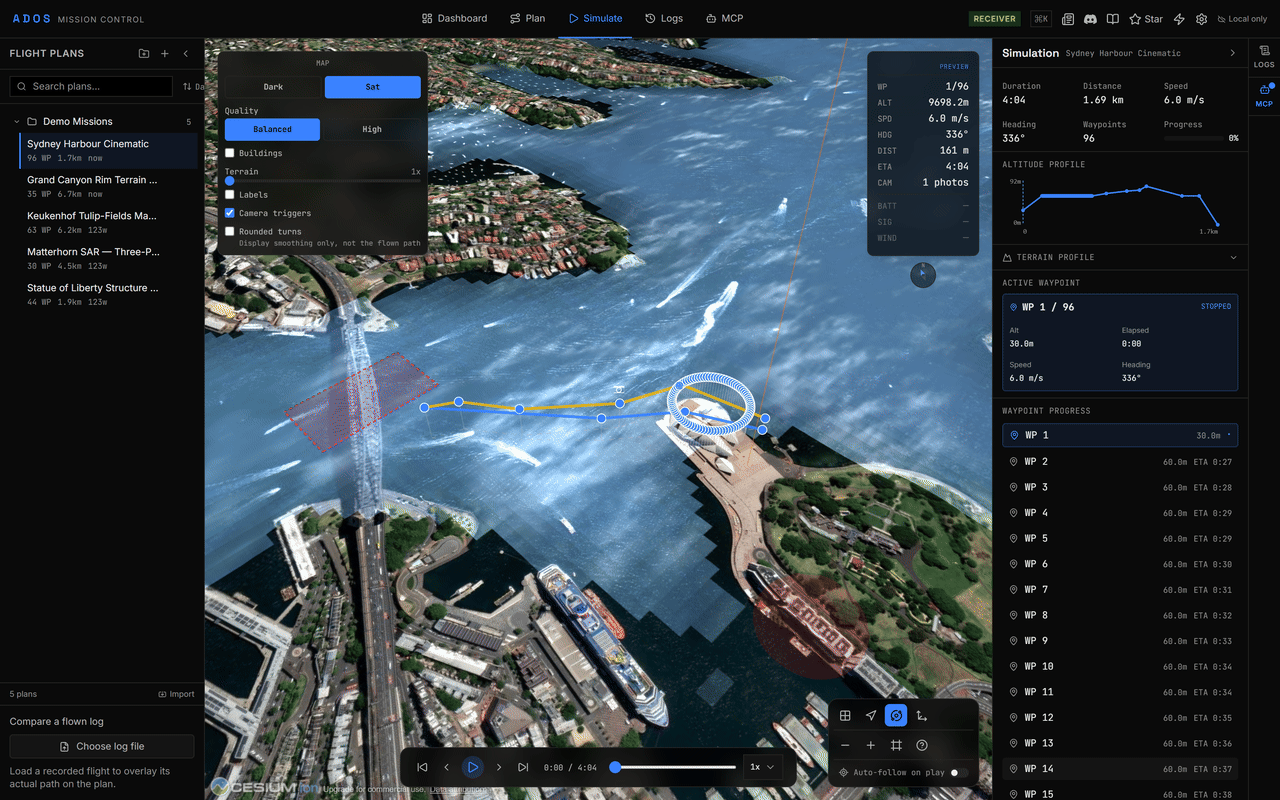
The Simulate tab renders your missions and flight history on a 3D CesiumJS globe. Replay recorded flights, preview planned missions, and inspect the flight path from any angle.
CesiumJS globe showing a drone flight path over terrain

What You Can Visualize

The simulation viewer renders multiple layers on the 3D globe:
LayerDescription
Flight path3D polyline showing the drone’s actual or planned route
Drone entityAn animated drone model that moves along the path during playback
Waypoint markersNumbered markers at each mission waypoint position
Camera trigger pointsMarkers showing where camera shutter events occur
Geofence volumes3D extruded polygons/cylinders showing geofence boundaries
Rally point markersFlag markers at rally point positions
Pattern boundariesThe source polygon for pattern-generated missions
GCS positionYour ground station location on the globe
Drone trailA fading trail behind the drone during playback

Replaying a Flight

1

Open the Simulate tab

Click “Simulate” in the top navigation.
2

Load a flight

Select a flight from the left panel. This can be a saved mission or a recorded flight log from the History tab.
3

Use playback controls

The playback bar at the bottom controls the replay. Play, pause, scrub the timeline, or adjust playback speed.
4

Explore the 3D view

Rotate, zoom, and tilt the globe to view the flight from any angle. The camera can follow the drone or be positioned freely.

Playback Controls

The playback bar provides standard media controls:
ControlFunction
Play / PauseStart or stop playback
Scrub barDrag to jump to any point in the flight
Speed selector0.5x, 1x, 2x, 4x, 8x playback speed
Step forward / backAdvance or rewind by one data frame
ResetReturn to the beginning

Simulation HUD

During playback, a heads-up display overlay shows real-time data at the current playback position:
  • Altitude (AGL and MSL)
  • Ground speed
  • Heading
  • Battery level at that moment
  • GPS status
  • Distance from home
  • Current waypoint (for mission replays)

Altitude Profile

Below the 3D view, an altitude profile chart shows:
  • Flight altitude over time or distance
  • Ground elevation (terrain line)
  • AGL clearance at each point
  • Waypoint altitude targets vs actual altitude
This is useful for verifying terrain following and checking that the drone maintained safe clearance.

Mission Preview

Before flying, you can preview a planned mission in 3D:
  1. Plan a mission in the Plan tab.
  2. Switch to the Simulate tab.
  3. The planned mission renders as waypoints connected by path lines.
  4. Play the preview to see an animated drone fly the planned route.
This helps you visualize the mission in 3D before uploading to the FC, especially over hilly terrain where 2D map views can be misleading.

Map Controls Panel

The controls panel on the side lets you toggle visualization layers:
  • Show/hide flight path
  • Show/hide waypoint markers
  • Show/hide camera triggers
  • Show/hide geofence volumes
  • Show/hide rally points
  • Toggle terrain imagery (satellite, terrain, or both)
  • Toggle 3D buildings (in supported areas)

Camera Modes

The CesiumJS viewer supports several camera modes:
ModeDescription
FreeManually control the camera with mouse/touch
FollowCamera follows the drone, looking at it from behind
OverheadTop-down view following the drone
First personCamera positioned at the drone, looking forward

Cesium Token

CesiumJS requires an API token for terrain data and 3D tiles. Set the NEXT_PUBLIC_CESIUM_TOKEN environment variable with your Cesium ion token. Without a token, the globe still works but terrain elevation may be flat.
NEXT_PUBLIC_CESIUM_TOKEN=your_cesium_ion_token_here
Get a free token at cesium.com/ion.

History Integration

The History tab records flight data. From the History tab, you can:
  1. Select a recorded flight.
  2. Click “Open in Simulation” to load it in the 3D viewer.
  3. Replay the flight with full telemetry overlay.
History detail pages also include their own analysis tools: statistics panels, correlation charts, and vibration spectrograms.

Performance Notes

CesiumJS renders a full 3D globe with terrain and imagery. For best performance:
  • Use a dedicated GPU or integrated graphics with WebGL 2 support
  • Close other GPU-heavy browser tabs
  • Reduce the browser window size if frame rate drops
  • On low-end machines, disable 3D buildings and use simplified terrain