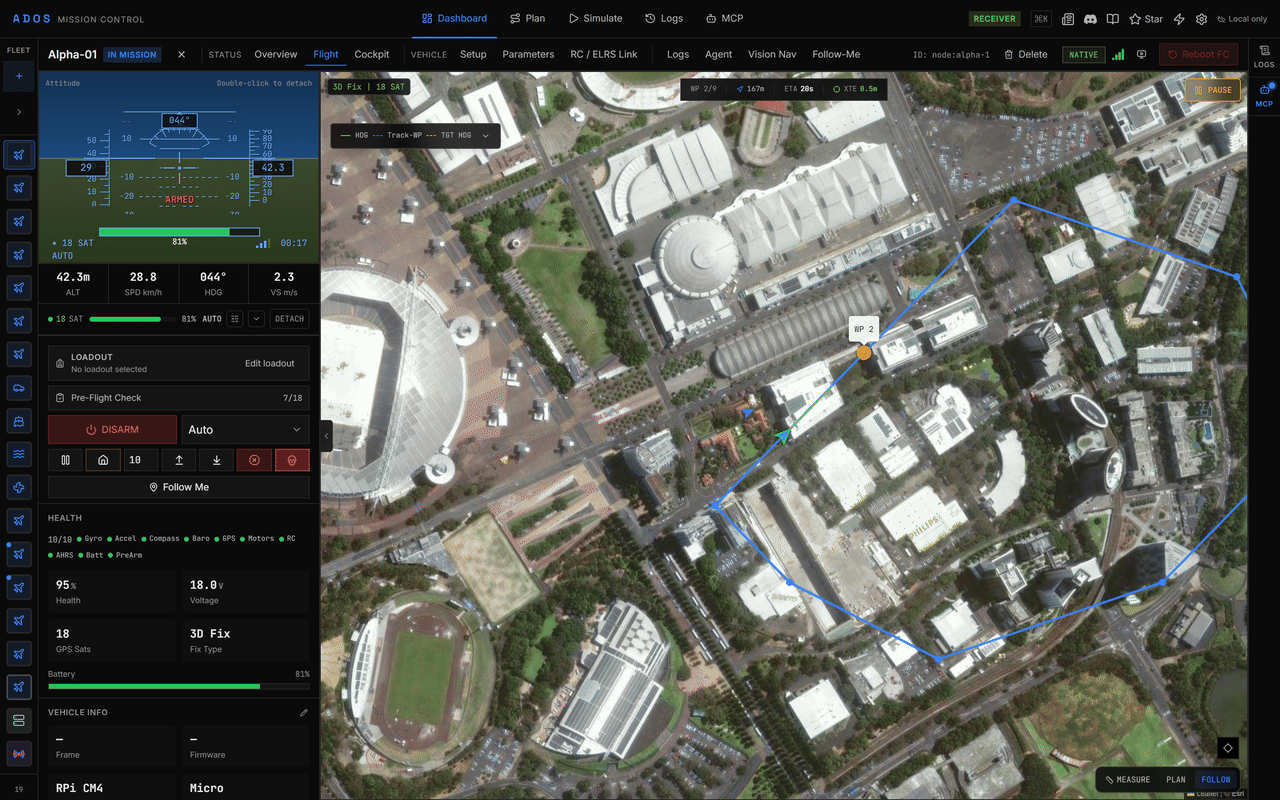
The Command tab is your cockpit. It provides live telemetry, video feed, manual flight controls, and smart flight modes. This is where you fly your drone.
Command tab showing live flight interface

Command Tab Layout

The Command tab has several areas:
  • Video feed (center): Live camera stream from the drone, with OSD overlay
  • Telemetry strip (bottom or side): Attitude, speed, altitude, battery, GPS
  • Actions panel (right): Arm/disarm, mode change, guided commands
  • Smart modes panel: Follow-Me, Orbit, QuickShots, obstacle avoidance
  • Fleet sidebar (left): Drone selection when multiple are connected
  • Mini-map (corner): Overhead view of drone position

Gamepad Control

Mission Control supports gamepad and HOTAS input at 50 Hz using the Web Gamepad API. When a gamepad is connected, the GCS sends MANUAL_CONTROL MAVLink messages directly to the flight controller. Supported input devices:
  • Xbox controllers (wired and wireless)
  • PlayStation DualShock/DualSense
  • Logitech gamepads
  • HOTAS (Hands On Throttle And Stick) setups
  • Any HID gamepad recognized by the Web Gamepad API

How It Works

  1. Connect a gamepad to your computer (USB or Bluetooth).
  2. The browser detects it automatically via the Gamepad API.
  3. Mission Control polls the gamepad at 50 Hz (every 20ms).
  4. Stick positions are mapped to roll, pitch, throttle, and yaw.
  5. MANUAL_CONTROL messages are sent to the flight controller at 50 Hz.
Gamepad control sends real stick inputs to the flight controller. Make sure you understand your FC’s flight mode behavior before flying with a gamepad. Start in a stabilized mode.

Input Mapping

The default mapping follows standard RC conventions:
Gamepad AxisChannelFunction
Right stick XRollBank left/right
Right stick YPitchPitch forward/back
Left stick YThrottleClimb/descend
Left stick XYawRotate left/right
You can customize the input mapping in Settings > Input.

Keyboard Control

For quick commands without a gamepad, keyboard shortcuts are available:
KeyAction
SpaceArm / Disarm (with confirmation)
RReturn to Launch
LLand
TTakeoff
GEnter Guided mode
Arrow keysNudge position in guided mode
+ / -Adjust altitude in guided mode
Keyboard controls work in guided mode for position nudging. For full 4-axis manual flight control, use a gamepad or HOTAS.

Guided Mode

Guided mode lets you command the drone to fly to specific positions. In this mode, you can:
  • Click the map to set a guided waypoint. The drone flies to that position.
  • Set altitude before sending the goto command.
  • Use keyboard arrows to nudge the drone’s position incrementally.
A confirmation dialog appears before sending guided commands, showing the target position and distance from the drone’s current location.

Smart Modes

The Command tab includes smart flight modes that automate common flying patterns:

Follow-Me

The drone follows your phone or GCS location using GPS. Configure follow distance, altitude, and bearing offset.

Orbit

The drone circles a point of interest at a set radius, altitude, and speed. Useful for inspection and videography.

QuickShots

Automated camera moves: dronie, rocket, circle, helix, and boomerang. One tap to launch.

Obstacle Avoidance

Configure avoidance behavior when the drone has proximity sensors. Set response modes and safety distances.

Actions Panel

The actions panel on the right side provides direct control buttons:
  • Arm / Disarm with a safety confirmation dialog
  • Flight mode selector showing all available modes for the connected firmware
  • Return to Launch (RTL) button
  • Land button
  • Takeoff button with altitude input
  • Pre-flight checklist to verify readiness before flight
  • Failsafe alert banner showing active failsafe conditions

Pre-Flight Checklist

Before arming, the pre-flight checklist helps you verify that your drone is ready:
  • GPS lock status
  • Battery level
  • Pre-arm check results from the FC
  • Sensor health
  • RC input status
  • Geofence configured (if applicable)
Items that fail show warnings with explanations. You can acknowledge warnings and proceed, or fix the issues first.

OSD Overlay

When video is active, an on-screen display (OSD) overlay shows key telemetry data on top of the video feed:
  • Altitude, speed, heading
  • Battery voltage and percentage
  • Flight mode
  • GPS satellite count
  • Home direction and distance
  • Armed status

Telemetry Strip

The telemetry strip at the bottom shows real-time flight data in a compact format. See the Telemetry page for details on all available readouts.

Mission Execution

When a mission is active, the Command tab shows mission execution progress:
  • Current waypoint indicator
  • Distance to next waypoint
  • Mission completion percentage
  • Elapsed time