

/flight-logs) lists those records along with any logs you import.
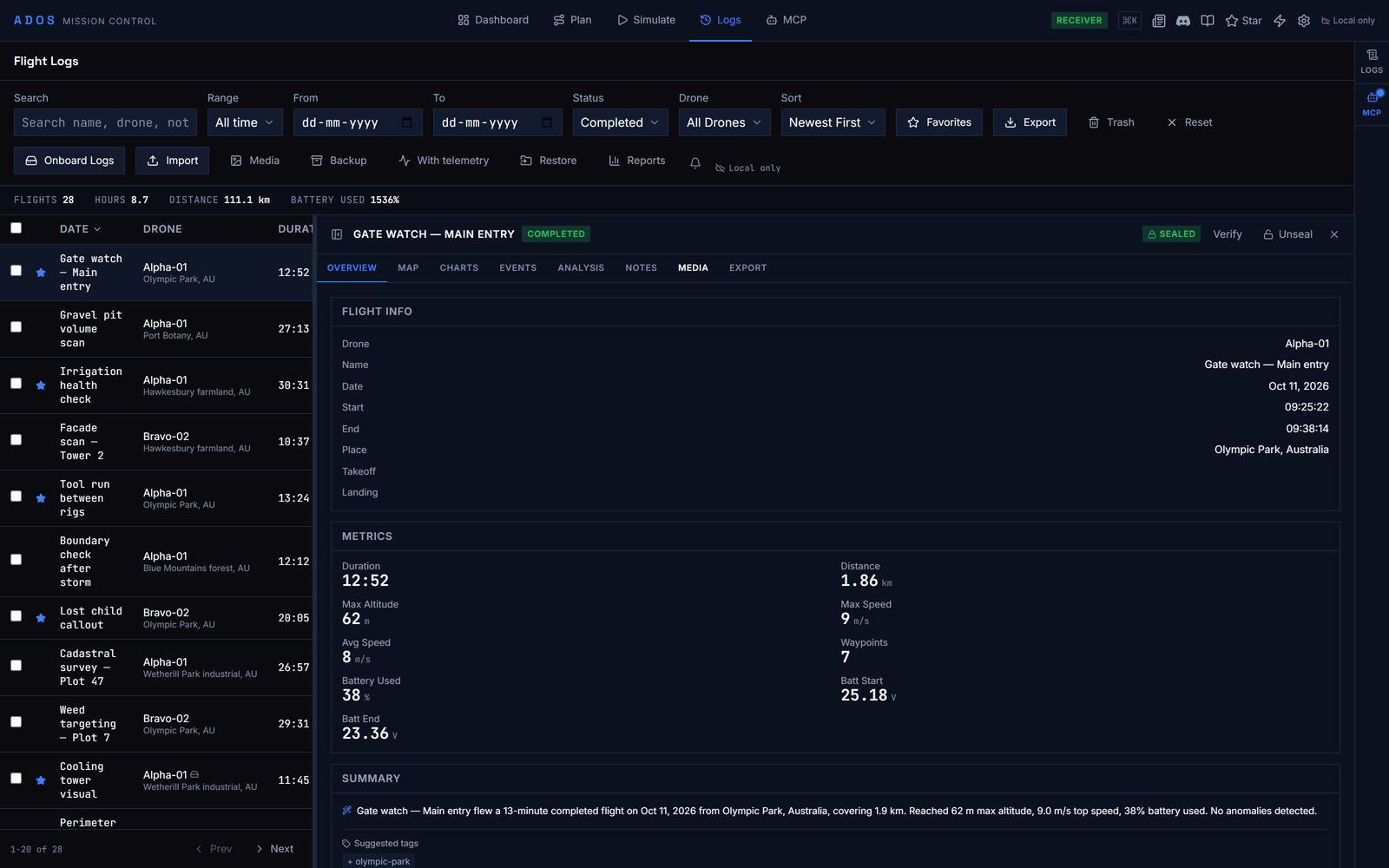
The Logs tab with the flight list and a flight's detail panel open.
Flight list
The toolbar filters and sorts the list:
Other toolbar actions: Export, Onboard Logs (download from the flight controller), import logs, import media, a full backup as a ZIP (optionally with telemetry) and restore from a backup, and Reports.
Select rows with the checkboxes (Shift-click selects a range) for the bulk bar: Export, Logbook, Compare, Overlay, Fleet map, Favorite and Unfavorite. Press
/ to focus the search box, Del to move selected flights to the trash after a confirmation (the trash view offers Restore and Delete permanently), T to toggle the trash view, and Esc to close the detail panel or clear the selection.
Flight detail
Click a flight to open its detail panel. It has eight tabs:
Sign & lock seals a record so it cannot be edited.
Replay
When a flight has recorded position telemetry, Replay opens a full-screen replay with the map, a telemetry panel and a playback bar.
To overlay a flown log on a mission plan instead, use Compare a flown log in the 3D mission preview.
Import logs
Import logs recorded elsewhere. The format is detected from the file: ArduPilot dataflash (.bin), PX4 ULog (.ulg, .ulog), MAVLink telemetry logs (.tlog) and Mission Control JSON exports (.json). Each import is split into flight records.
Download logs from the flight controller
Onboard Logs lists the logs stored on the connected flight controller. Select one or more and download them; Mission Control detects ArduPilot dataflash or PX4 ULog, splits them into flights and adds them to the list. This needs a real flight controller; demo drones show a notice and do not download. Each drone’s Logs tab in the node detail panel shows the same flights filtered to that drone (Flights) and, on nodes with the Drone Agent, the on-device Black Box store (Recorder). See Black Box.Reports
Reports (/flight-logs/reports) summarises flights over a date range: total flights, hours, distance and battery use, averages, and a breakdown by drone.
Cloud sync
Flight records are stored in your browser. When you are signed in to a cloud-connected Mission Control, records also sync to the cloud: new and changed records upload about a second after the change, records from your other browsers download on load, and permanently deleted records stay deleted. A cloud badge in the toolbar and on each row shows the sync state. See Cloud features.Next steps
3D mission preview
Compare a flown log with the mission plan.
Mission file formats
Formats for plans, boundaries and parameters.