

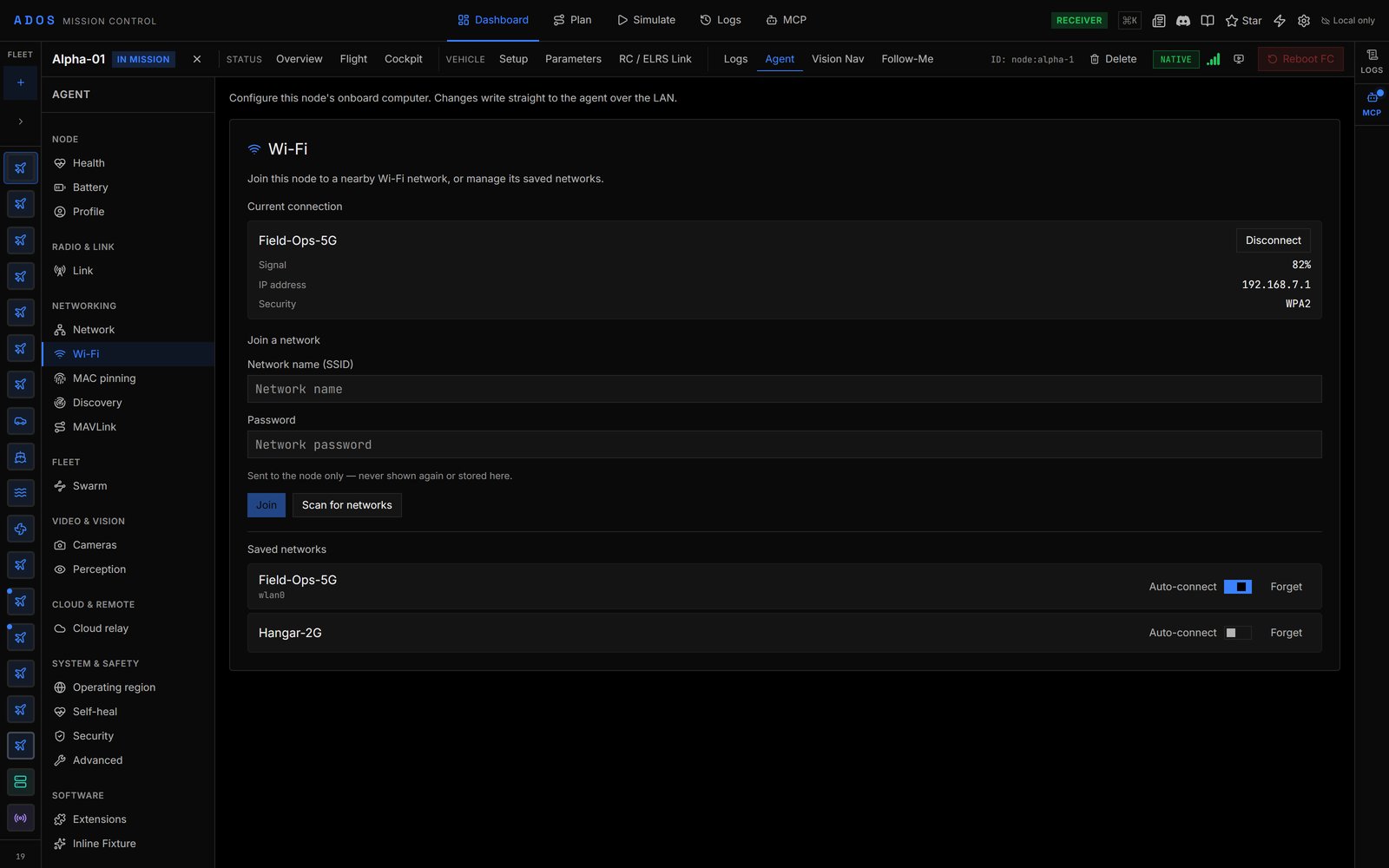
A drone's Agent tab with Networking, Wi-Fi open.
Pages
Which pages appear depends on the node’s profile. Configuration pages need a companion computer, so a flight controller connected without an agent shows none. Empty groups are hidden.
A page with a setup segment shows a Live view and a Setup view side by side. Logs are not here; they are the node’s own Logs tab.
An installed extension can add pages to this sidebar, in the group its manifest names (or under Software). The World Engine extension, for example, adds its own setup pages. Install and remove extensions from Software → Extensions; see Install extensions from Mission Control.
When the node has stopped or refused an extension, for example because its files no longer match their signed digests or its signer was revoked, the extension’s row on Software → Extensions carries a red line, Stopped by the node: , with the agent’s own reason. The reason is read from the node over the LAN, so it appears only for a node Mission Control reaches directly.
What each key on these pages means is on Drone Agent configuration.
Confirmed writes
Each field confirms its write by reading the value back from the node, so a setting that did not take is visible rather than assumed. Secret values (keys and passwords) are redacted on read; the page never echoes a stored secret. Some writes are refused while the drone is armed, for example changes that would restart the radio or MAVLink services. The page shows the refusal; disarm and try again.Three ways to reach a node
The Agent tab works over whichever path Mission Control has to the node:- LAN: Mission Control talks to the agent directly.
- Cloud relay: reads and writes go through the cloud config path.
- Radio: a drone reached only through a ground station is configured over a tunnel that carries the request across the radio link to the drone.
Next steps
Ground station node panel
The ground station’s own tabs: radio, network, mesh and front panel.
Nodes and Swarm views
Reach and fleet-wide actions.
Settings
Mission Control’s own settings, separate from node configuration.