

ados on the node, or over SSH, to open the terminal dashboard:
ados hands off to the native ados-tui dashboard. It polls the local agent every 2 seconds on a background thread, so a slow or hung agent never freezes the screen or the keys. Without a TTY (a pipe, a script, or a missing dashboard binary), ados prints the same one-shot summary as ados status.
For scripts or support collection, use JSON:
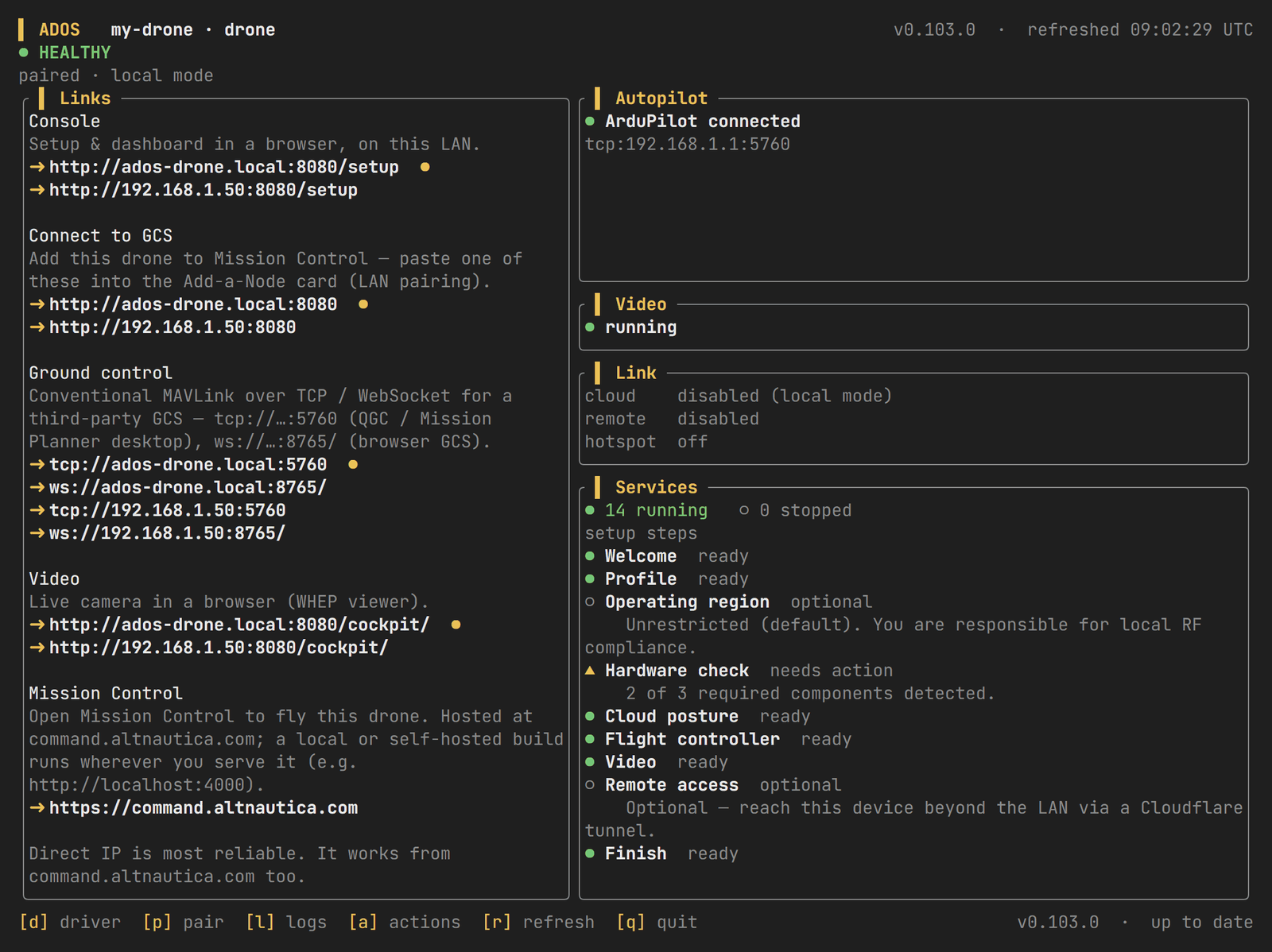
The terminal dashboard on a drone node.
Layout
The top line shows the node identity, the last refresh time and, when needed, astale flag. Under it, a verdict line reads HEALTHY, DEGRADED or SETUP, followed by a one-line summary.
The footer lists the key hints on the left and the installed version on the right, with “up to date” or “update available” once the background version check lands.
Keys
Quick actions
The actions overlay (a) lists 8 actions. Each one runs an existing ados (or systemctl) command in the plain terminal, so you see its real output and any sudo prompt, then press Enter to return to the dashboard. Actions marked confirm ask [y/N] first.
Two actions refuse rather than run when it is unsafe:
- Update agent is refused while the vehicle reports armed, because an update restarts the MAVLink router, video and radio.
- Restart radio is refused until the agent has reported the node’s profile, because a drone and a ground station run different radio units.
Update splash
On launch, the dashboard checks for a newer agent release in the background. If one exists, a splash shows the installed and latest versions once per session. Pressu to update (the same confirmed, armed-refused path as the u key), or any other key to continue to the dashboard. The footer keeps an “update available” reminder.
Stale data
If no poll has succeeded for 6 seconds, the header showsstale and the verdict line changes to STALE (or UNREACHABLE when the last poll returned an error) and says it is showing the last snapshot. The Autopilot panel hides its flight readings, so a frozen mode, arm state or battery level never reads as live.
Next steps
Browser dashboard
Open the setup URL from the Links panel for first-run setup and settings.
Agent CLI reference
Every
ados command behind the quick actions.